
TRĒ AI Colleagues Settings
At TRĒ AI, we’re committed to making your CRM experience faster, smarter and more effective. That’s why we’re excited to share a recent enhancement designed to give you greater flexibility with managing your Colleagues.
What do you need to do?
Not a thing. This enhancement has been introduced to your environment.
What should I expect to see?
On the Configuration tab, you will now see a Colleagues Settings page.
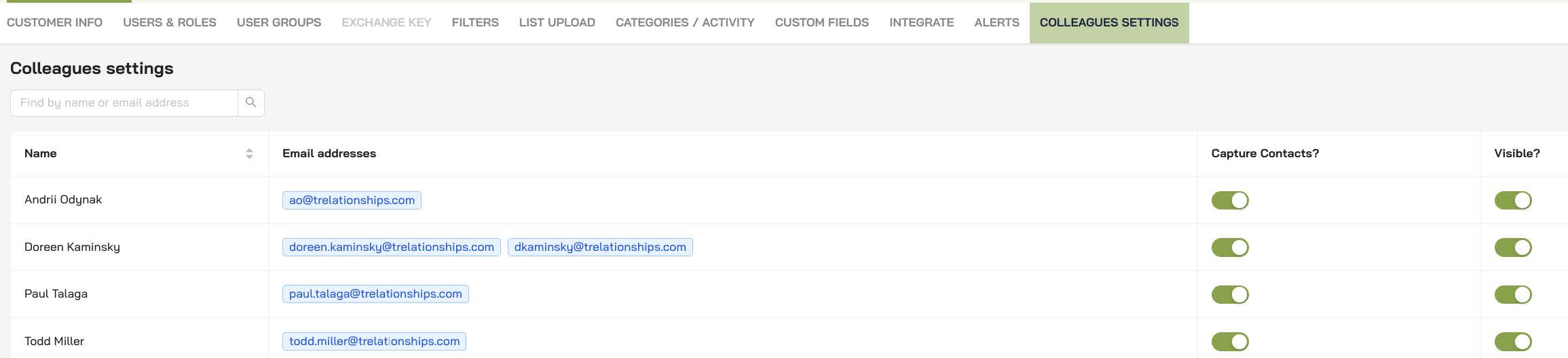
The names you see on the Colleagues Settings page are the same names you see in Colleagues in List Builder.
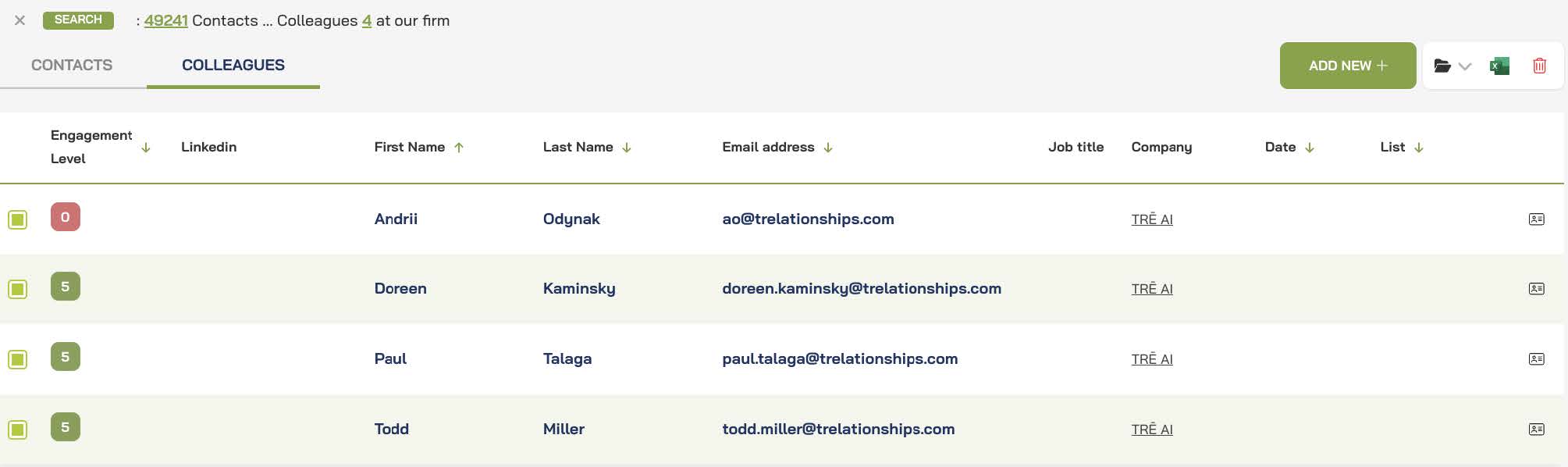
Capture Contacts?
The Capture Contacts toggle allows you to have control over whether you want that specific Colleague’s contacts to be captured and added to TRĒ AI. This new functionality will allow you to upload staff, for example, and not capture their contacts. This gives you the ability now to have a complete “All Personnel” list that you can easily use for internal communications from TRĒmail.
This feature will also allow you to keep departed Colleagues “active” in the system while you are processing contacts that may need to be reassigned to other Colleagues. Simply toggle off capturing their contacts, and no further contacts will process.
Note: When adding new Colleagues, the default for Capture Contacts is enabled.
Visible?
The Visible toggle controls whether that Colleague can be seen in the UI. This functionality will allow you to keep departed Colleagues in the system but not have them visible. If you toggle Visible to off, any Contacts that Colleague may have had a relationship with will no longer be visible. The contact remains, but the relationship will be gone.
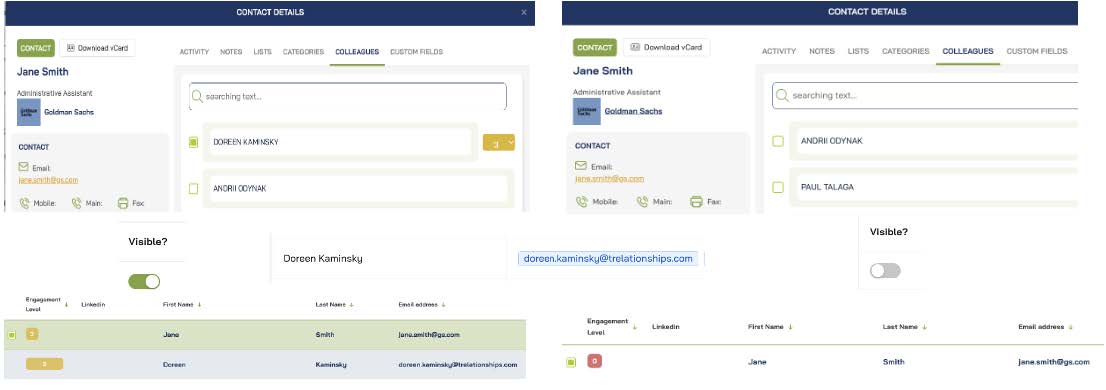
If you need to see relationships for that Colleague again, simply toggle Visible back on, and the relationships will re-establish.
Note: When adding new Colleagues, the default for Visible is enabled.
What has changed?
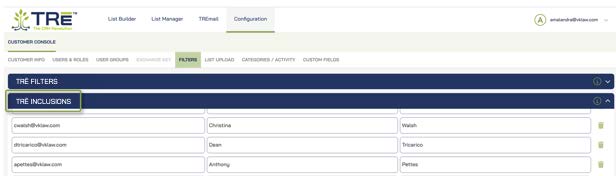
There is no longer a separate Inclusion List under Filters. The new Colleagues Settings tab has replaced this functionality.
Uploading New Colleagues
The best practice for adding new Colleague is through List Upload.
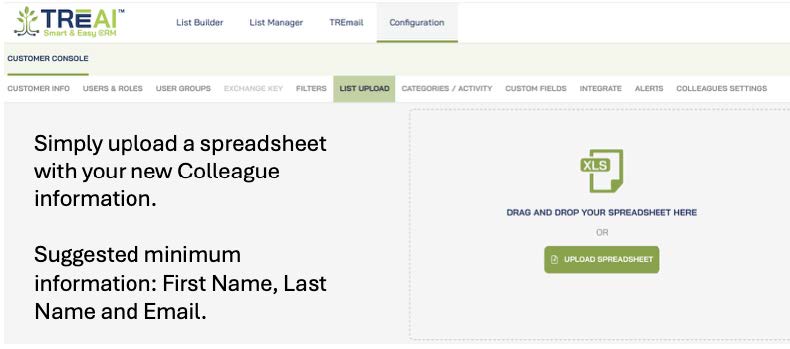
Note: Colleagues do not go through the same cleanse/enhance process during uploading as Contacts do.
Pro Tips!
• If you toggle off “Visible” that Colleague disappears completely from the UI. If there are Contacts associated with that Colleague, the relationship will no longer be visible when you look at the Contact. If you toggle “Visible” back on, the relationships will re-appear.
• The default setting when uploading Colleagues is YES to both “Capture Contacts” and “Visible”. If you are uploading staff, you may want toggle OFF the “Capture Contacts”, or their contacts will process and become visible in TRĒ.
What’s Next?
We appreciate your input, as it continues to help us shape the future of TRĒ AI. Please let us know what you think about this enhancement, and if there were others you would like to see.