WELCOME TO THE
TRĒ KNOWLEDGE CENTER
How can we help?
How can we help?
Search the Knowledge Center…

TRĒvents
On this page
Event creation
Smart Checklist
Event assistant
Canva sync
Event landing page
Invitation
Event export
TRĒvents is the world’s first event management solution powered by AI, dramatically reducing the time and effort required to create and manage events.
Event creation
To create an event, click the “Create Event” button and enter as few or as many details about the event as you like:
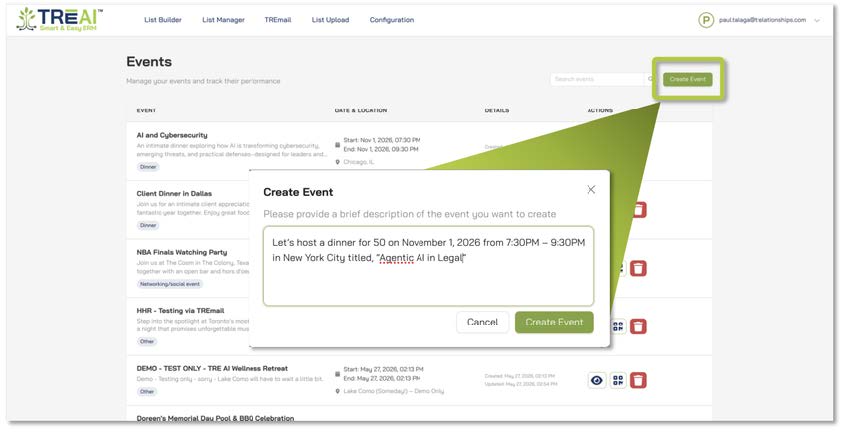
For this event, we entered “Let’s host a dinner for 50 on November1, 2026 from 7:30PM – 9:30PM in New York City titled, “Agentic AI in Legal” TRĒvents responds with a partially completed event. We’ll dive into each component.
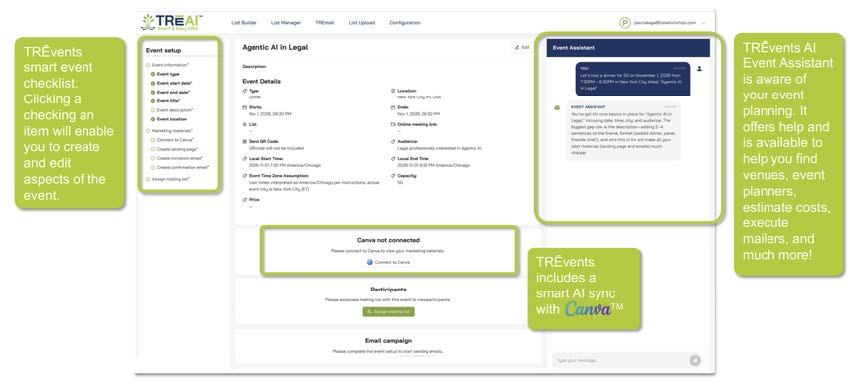
SMART CHECKLIST
Event setup checklist
By simply entering “Let’s host a dinner for 50 on November 1, 2026 from 7:30PM – 9:30PM in New York City titled,“Agentic AI in Legal,” we checked many of the checkboxes on TREvents’ Event setup checklist.
If we wanted to add or edit to our event form, we can either click one of the checklist tasks or the event Edit button

EVENT ASSISTANT
TRĒvents’ Event Assistant is much more than a chat bot. You can use it to find venues, estimate costs, put you in touch with event managers, write event descriptions, send invitations, and much more.
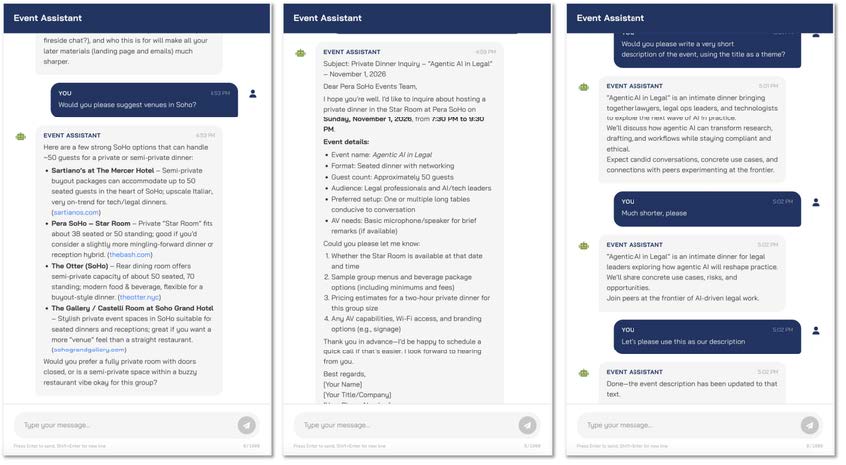
TRĒvents’ Event Assistant is much more than a chat bot. You can use it to find venues, estimate costs, put you in touch with event managers, write event descriptions, send invitations, and much more.

CANVA SYNC
Marketing materials
The next step is to create your marketing materials for your event:your landing page, event invitation, and confirmation email. The first step is to connectTRĒvents to your CanvaTM account.
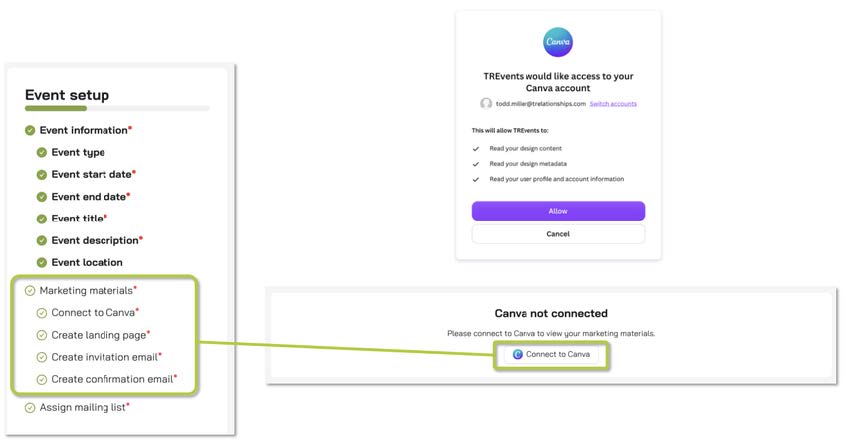
TRĒvents enables you to use your own Canva designs and branding for your materials and uses AI to accelerate the creation of these materials.

Install TRĒvents Canva plug-in
To take full advantage of all that the TRĒvents AI sync to Canva has to offer, you will need to install our Canva plug-in. Here are the instructions:
Step 1: Open the Canva Developer Portal
Go to the Canva Developer Portal using this link: https://www.canva.com/developers/apps
Once there, you will see the Apps section at the top of the page.
Step 2: Create a New App
1. Click Create App
Select Public
Agree to the terms
Click Create
If this is your first app, the field box may be empty.
Step 3: Upload the JavaScript Bundle
After the app is created, you will land on the Code Upload stage.
Select JavaScriptBundle
Click Choose File
Upload the JavaScript bundle file that we provide The upload process should only take a few seconds.
Step 4: Configure the App Listing
1. From left panel,navigate to Marketing > App ListingDetails.
2. Click on Text and Enter the application name: Example: TREvents
3. Save the changes
Step 5: Previewthe App in Canva
1. Click Preview at the top left.
2. This will open the Canva Studio environment
You will see the app preview appear on the left-hand side of the screen.
1. Click Open
2. The app will load in the Canva sidebar.You will see the TREventsapp listed.
Step 6: Sign In
When the app opens, you will see a Sign In to Get Started prompt.
1. Click Login to TRE
2. Click Continue
3. Enter login credentials
4. Click Sign In
The user will then be redirected to the AI/Relationships experience.
Step 7: Access Events
1. After authentication is complete, users can return to the Canva application.
2. They will now see the list of their available events within the app.
EVENT LANDING PAGE
Make an event landing page
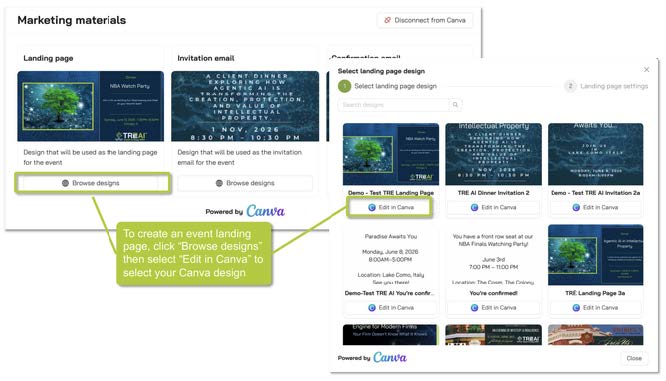
To create an event landing page, click“Browse designs” then select “Edit in Canva” to select your Canva design
This launches your Canva design. Now scroll the Canva toolbar to the TRĒvents Canva plugin you just installed

Clicking the TRĒvents Canva plugin displays your various TRĒvents. Select the TRĒvent you wish to build a landing page for.

TRĒvents “Magic Mapper” uses AI to automatically map key aspects of your event into your Canva design text boxes. You can edit these fields as you like, either within the Magic Mapper fields, or in the Canva text boxes.
Click the “Apply all” button to paste the field contents into the Canva text boxes.
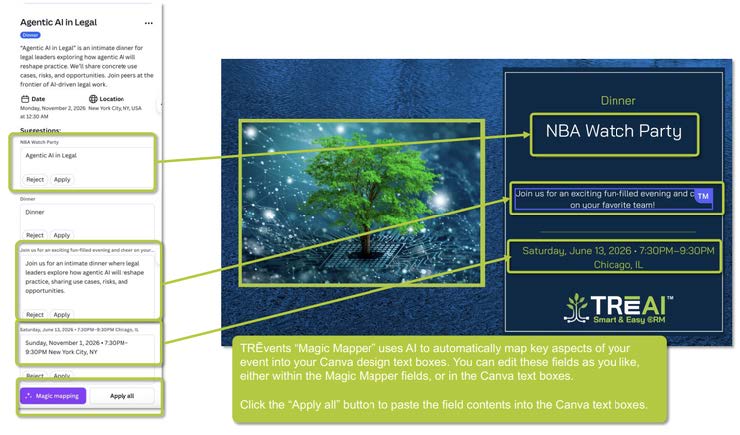
Et voila! Your landingpage design is customized to your event in one click!

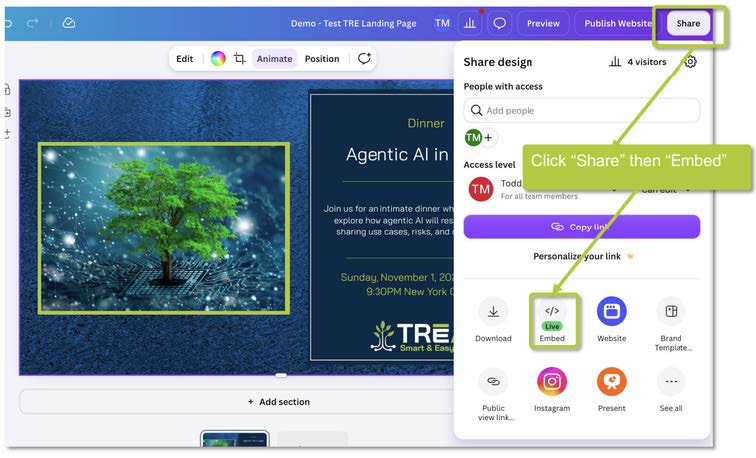
Now click “Share” then “Embed”
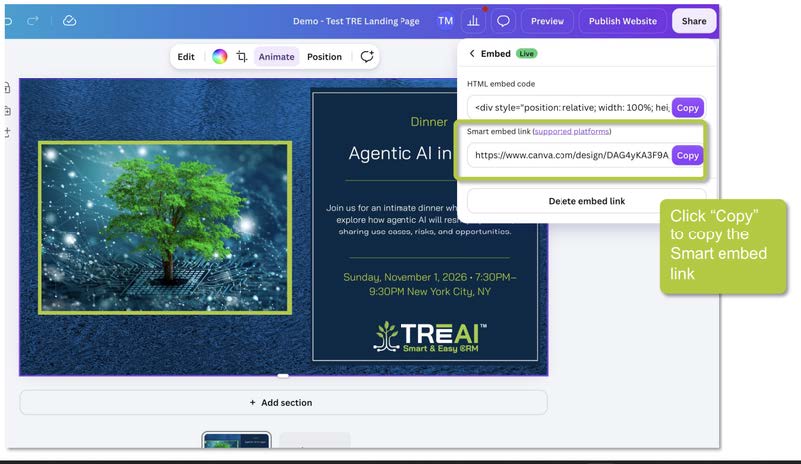
Now click “Copy” to copy the Smart embed link
Now, go back to TRĒvents and click your Canva design thumbnail, then paste the Canva Embed URL in the Embed URL field:

Last step: Label your landing page RSVP/submit button and enter the field names you would like to appear on your landing page, then click “Save.”

Now click the “Preview”button to see your shiny new landing page!

INVITATION
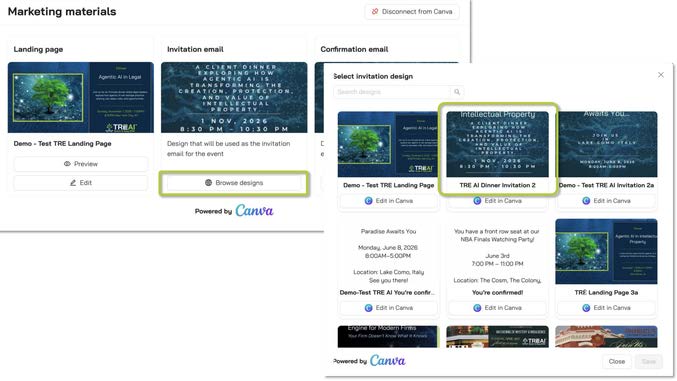
The process to create invitations and confirmation emails is much simpler. After you select your Canva designs and edit them,you simply select the thumbnail for your Canva design and you’re done!
Embedding QR codes for in-person events
QR codes may be easily embedded in confirmation emails sent to RSVPs.Simply click “Edit”in the Event Details pane, toggle “Send QR Code” On and click “Save.”

This will automatically embedQR codes in confirmation emails received by your RSVPs. Additionally, Confirmation email block time on recipients’ calendars for the event.
Embedding online meeting links
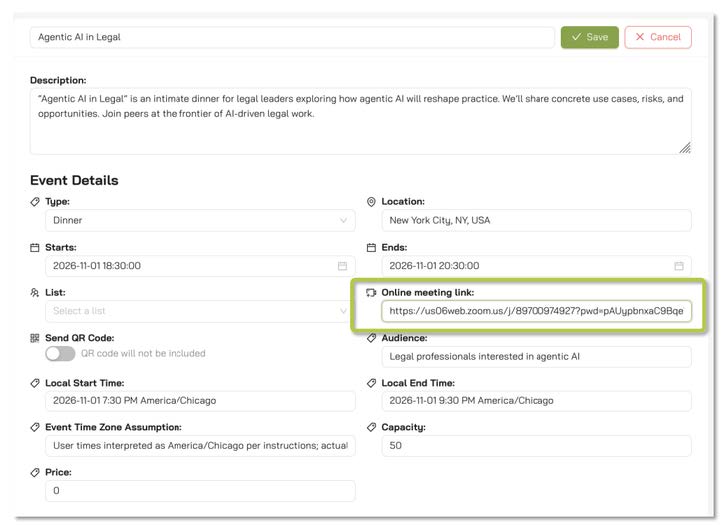
Embedding online links works similarly to enabling QR codes. Simplyedit the Eventdetails, paste the Zoom or Teams link, and save.
Selecting Lists
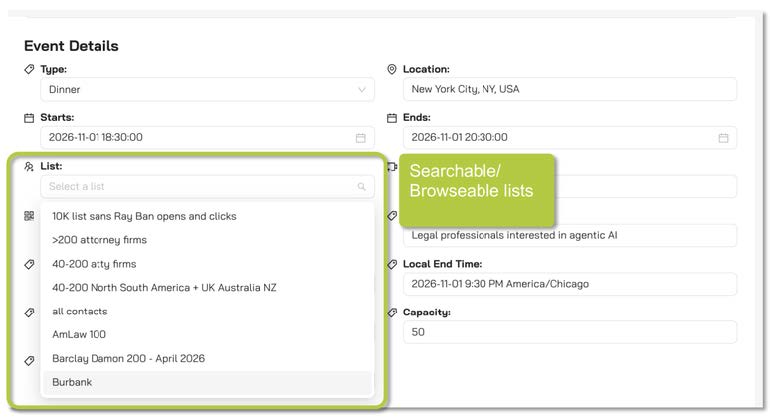
Lists created in TRĒ AI List Builder are instantly accessible in TRĒvents. Selecta list by either clicking the Edit button in Event Details or click the “Assign Mailing List” button.

Either takes you to a searchable/browseable list of lists.Simply select one and click“Save”
Selecting Lists
Lists created in TRĒ AI List Builder are instantly accessible in TRĒvents. Select a list by either
Send invitation
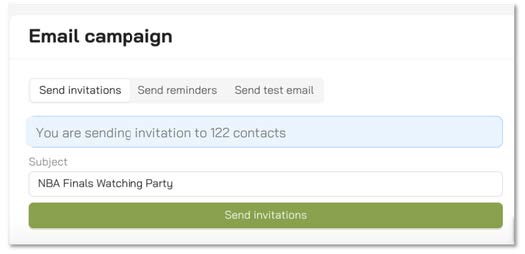
Just click “Send Invitations” to get your invitations out the door.You also have the options to send test invitations and reminders to invitees who have not yet RSVP’d. You can also ask Event Assistant to send invitations or reminders.
Invitation satus
When your invitations are sent, invite status changes to “Pending.” When invitees RSVP on your landing page, status changes to “Accepted.”
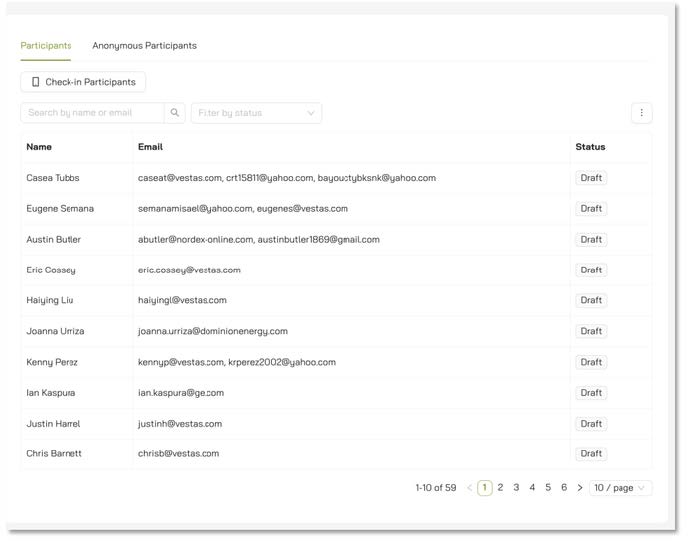
If an invitee forwards an invitation to someone who isn’t on your list, they will appear under the “Anonymous Participants” tab, where you have the opportunity to review, approve,or reject the pending attendee.

Confirmation email and scan guestQR codes
When your invitee RSVPs, they receive a confirmation email which reserves time on their calendar. If you have enabled the QR code for in-person events, the QR code is automatically embedded in the confirmation email.

EVENT EXPORT
Click “Export” to generate event report, with attended, no shows, declines, and non-responses.



Copyright 2026 TRĒ AI, Inc. All rights reserved.
“TRĒ”, “TRĒ Effect”, “TRĒ AI”, and the TRĒ tree logos are trademarks of TRĒ AI, Inc.
Copyright 2026 TRĒ AI, Inc. All rights reserved.
“TRĒ”, “TRĒ Effect”, “TRĒ AI”, and the TRĒ tree logos are trademarks of TRĒ AI, Inc.
Copyright 2026 TRĒ AI, Inc. All rights reserved.
“TRĒ”, “TRĒ Effect”, “TRĒ AI”, and the TRĒ tree logos are trademarks of TRĒ AI, Inc.
WELCOME TO THE
TRĒ KNOWLEDGE CENTER
How can we help?
Search the Knowledge Center…
On this page
Event creation
Smart Checklist
Event assistant
Canva sync
Event landing page
Invitation
Event export
TRĒvents is the world’s first event management solution powered by AI, dramatically reducing the time and effort required to create and manage events.
Event creation
To create an event, click the “Create Event” button and enter as few or as many details about the event as you like:
For this event, we entered “Let’s host a dinner for 50 on November 1, 2026 from 7:30PM – 9:30PM in New York City titled, “Agentic AI in Legal” TRĒvents responds with a partially completed event. We’ll dive into each component.
SMART CHECKLIST
Event setup checklist
By simply entering “Let’s host a dinner for 50 on November 1, 2026 from 7:30PM – 9:30PM in New York City titled,“Agentic AI in Legal,” we checked many of the checkboxes on TREvents’ Event setup checklist.
If we wanted to add or edit to our event form, we can either click one of the checklist tasks or the event Edit button
EVENT ASSISTANT
TRĒvents’ Event Assistant is much more than a chat bot. You can use it to find venues, estimate costs, put you in touch with event managers, write event descriptions, send invitations, and much more.
TRĒvents’ Event Assistant is much more than a chat bot. You can use it to find venues, estimate costs, put you in touch with event managers, write event descriptions, send invitations, and much more.
CANVA SYNC
Marketing materials
The next step is to createyour marketing materials for your event:your landing page,event invitation, and confirmation email. The first step is to connectTRĒvents to your CanvaTM account.
TRĒvents enables you to use your own Canvadesigns and brandingfor your materials and uses AI to accelerate the creation of these materials.
Install TRĒvents Canva plug-in
To take full advantageof all that the TRĒventsAI sync to Canva has to offer, you will need to install our Canva plug-in. Here are the instructions:
Step 1: Open the Canva Developer Portal
Go to the Canva Developer Portal using this link: https://www.canva.com/developers/apps
Once there, you will see the Apps section at the top of the page.
Step 2: Create a New App
1. Click Create App
Select Public
Agree to the terms
Click Create
If this is your first app, the field box may be empty.
Step 3: Upload the JavaScript Bundle
After the app is created, you will land on the Code Upload stage.
Select JavaScriptBundle
Click Choose File
Upload the JavaScript bundle file that we provide The upload process should only take a few seconds.
Step 4: Configure the App Listing
1. From left panel, navigate to Marketing > App ListingDetails.
2. Click on Text and Enter the application name: Example: TREvents
3. Save the changes
Step 5: Previewthe App in Canva
1. Click Preview at the top left.
2. This will open the Canva Studio environment
You will see the app previewappear on the left-hand side of the screen.
1. Click Open
2. The app will load in the Canva sidebar.You will see the TREventsapp listed.
Step 6: Sign In
When the app opens, you will see a Sign In to Get Started prompt.
1. Click Login to TRE
2. Click Continue
3. Enter login credentials
4. Click Sign In
The user will then be redirected to the AI/Relationships experience.
Step 7: Access Events
1. After authentication is complete, users can return to the Canva application.
2. They will now see the list of their availableevents within the app.
EVENT LANDING PAGE
Make an event landing page
To create an eventlanding page, click“Browse designs” then select “Editin Canva” to select your Canva design
This launches your Canva design. Now scroll the Canva toolbar to the TRĒvents Canva plugin you just installed
Clicking the TRĒvents Canva plugin displays your various TRĒvents. Select the TRĒvent you wish to build a landing page for.
TRĒvents “Magic Mapper” uses AI to automatically map key aspects of your event into your Canva design text boxes. You can edit these fields as you like, either within the Magic Mapper fields, or in the Canva text boxes.
Click the “Apply all” button to paste the field contentsinto the Canva text boxes.
Et voila! Your landing page design is customized to your event in one click!
Now click “Share” then “Embed”
Now click “Copy” to copy the Smart embed link
Now, go back to TRĒvents and click your Canva design thumbnail, then paste the Canva Embed URL in the Embed URL field:
Last step: Label your landing page RSVP/submit button and enter the field names you would like to appear on your landing page, then click “Save.”
Now click the “Preview”button to see your shiny new landing page!
INVITATION
The process to create invitations and confirmation emails is much simpler. After you select your Canva designs and edit them,you simply select the thumbnail for your Canva design and you’re done!
Embedding QR codes for in-person events
QR codes may be easily embedded in confirmation emails sent to RSVPs.Simply click “Edit”in the Event Details pane, toggle “Send QR Code” On and click “Save.”
This will automatically embed QR codes in confirmation emails received by your RSVPs. Additionally, Confirmation email block time on recipients’ calendars for the event.
Embedding online meeting links
Embedding online links works similarly to enabling QR codes. Simply edit the Event details, paste the Zoom or Teams link, and save.
Selecting Lists
Lists created in TRĒ AI List Builder are instantly accessible in TRĒvents. Select a list by either clicking the Edit button in Event Details or click the “Assign Mailing List” button.
Either takes you to a searchable/browseable list of lists. Simply select one and click“Save”
Selecting Lists
Lists created in TRĒ AI List Builder are instantly accessible in TRĒvents. Select a list by either
Send invitation
Just click “Send Invitations” to get your invitations out the door.You also have the options to send test invitations and reminders to invitees who have not yet RSVP’d. You can also ask Event Assistant to send invitations or reminders.
Invitation satus
When your invitations are sent, invitee status changes to “Pending.” When invitees RSVP on your landing page, status changes to “Accepted.”
If an invitee forwards an invitation to someone who isn’t on your list, they will appear under the “Anonymous Participants” tab, where you have the opportunity to review, approve,or reject the pending attendee.
Confirmation email and scan guestQR codes
When your invitee RSVPs, they receive a confirmation email which reserves time on their calendar. If you have enabled the QR code for in-person events, the QR code is automatically embedded in the confirmation email.
EVENT EXPORT
Click “Export” to generate event report, with attended, no shows, declines,and non-responses.
TRĒvent
TRĒvent

On this page
Event creation
Smart Checklist
Event assistant
Canva sync
Event landing page
Invitation
Event export
TRĒvents is the world’s first event management solution powered by AI, dramatically reducing the time and effort required to create and manage events.
Event creation
To create an event, click the “Create Event” button and enter as few or as many details about the event as you like:
For this event, we entered “Let’s host a dinner for 50 on November1, 2026 from 7:30PM – 9:30PM in New York City titled, “Agentic AI in Legal” TRĒvents responds with a partially completed event. We’ll dive into each component.
SMART CHECKLIST
Event setup checklist
By simply entering “Let’s host a dinner for 50 on November 1, 2026 from 7:30PM – 9:30PM in New York City titled,“Agentic AI in Legal,” we checked many of the checkboxes on TREvents’ Event setup checklist.
If we wanted to add or edit to our event form, we can either click one of the checklist tasks or the event Edit button
EVENT ASSISTANT
TRĒvents’ Event Assistant is much more than a chat bot. You can use it to find venues, estimate costs,put you in touch with event managers, write event descriptions, send invitations, and much more.
TRĒvents’ Event Assistant is much more than a chat bot. You can use it to find venues, estimate costs,put you in touch with event managers, write event descriptions, send invitations, and much more.
CANVA SYNC
Marketing materials
The next step is to create your marketing materials for your event: your landing page, event invitation, and confirmation email. The first step is to connect TRĒvents to your CanvaTM account.
TRĒvents enables you to use your own Canva designs and branding for your materials and uses AI to accelerate the creation of these materials.
Install TRĒvents Canva plug-in
To take full advantage of all that the TRĒvents AI sync to Canva has to offer, you will need to install our Canva plug-in. Here are the instructions:
Step 1: Open the Canva Developer Portal
Go to the Canva Developer Portal using this link: https://www.canva.com/developers/apps
Once there, you will see the Apps section at the top of the page.
Step 2: Create a New App
1. Click Create App
Select Public
Agree to the terms
Click Create
If this is your first app, the field box may be empty.
Step 3: Upload the JavaScript Bundle
After the app is created, you will land on the Code Upload stage.
Select JavaScriptBundle
Click Choose File
Upload the JavaScript bundle file that we provide The upload process should only take a few seconds.
Step 4: Configure the App Listing
1. From left panel,navigate to Marketing > App ListingDetails.
2. Click on Text and Enter the application name: Example: TREvents
3. Save the changes
Step 5: Previewthe App in Canva
1. Click Preview at the top left.
2. This will open the Canva Studio environment
You will see the app previewappear on the left-hand side of the screen.
1. Click Open
2. The app will load in the Canva sidebar.You will see the TREventsapp listed.
Step 6: Sign In
When the app opens, you will see a Sign In to Get Started prompt.
1. Click Login to TRE
2. Click Continue
3. Enter login credentials
4. Click Sign In
The user will then be redirected to the AI/Relationships experience.
Step 7: Access Events
1. After authentication is complete, userscan return to the Canvaapplication.
2. They will now see the list of their availableevents within the app.
EVENT LANDING PAGE
Make an event landing page
To create an event landing page, click“Browse designs” then select “Edit in Canva” to select your Canva design
This launches your Canva design. Now scroll the Canva toolbar to the TRĒvents Canva plugin you just installed
Clicking the TRĒvents Canva plugin displays your various TRĒvents. Select the TRĒvent you wish to build a landing page for.
TRĒvents “Magic Mapper” uses AI to automatically map key aspects of your event into your Canva design text boxes. You can edit these fields as you like, either within the Magic Mapper fields, or in the Canva text boxes.
Click the “Apply all” button to paste the field contentsinto the Canva text boxes.
Et voila! Your landing page design is customized to your event in one click!
Now click “Share” then “Embed”
Now click “Copy” to copy the Smart embed link
Now, go back to TRĒvents and click your Canva designthumbnail, then paste the Canva Embed URL in the Embed URL field:
Last step: Label your landing page RSVP/submit button and enter the field names you would like to appear on your landing page, then click “Save.”
Now click the “Preview”button to see your shiny new landing page!
INVITATION
The process to create invitations and confirmation emails is much simpler. After you select your Canva designs and edit them, you simply select the thumbnail for your Canva design and you’re done!
Embedding QR codes for in-person events
QR codes may be easily embedded in confirmation emails sent to RSVPs.Simply click “Edit”in the Event Details pane, toggle “Send QR Code” On and click “Save.”
This will automatically embedQR codes in confirmation emails received by your RSVPs. Additionally, Confirmation email block time on recipients’ calendars for the event.
Embedding online meeting links
Embedding online links works similarly to enablingQR codes. Simply edit the Event details, paste the Zoom or Teams link, and save.
Selecting Lists
Lists created in TRĒ AI List Builder are instantly accessible in TRĒvents. Select a list by either clicking the Edit button in Event Details or click the “Assign Mailing List” button.
Either takes you to a searchable/browseable list of lists. Simply select one and click“Save”
Selecting Lists
Lists created in TRĒ AI List Builder are instantly accessible in TRĒvents. Selecta list by either
Send invitation
Just click “Send Invitations” to get your invitations out the door.You also have the optionsto send test invitations and reminders to invitees who have not yet RSVP’d. You can also ask Event Assistant to send invitations or reminders.
Invitation satus
When your invitations are sent, invitee status changes to “Pending.” When invitees RSVP on your landing page, status changes to “Accepted.”
If an invitee forwards an invitation to someone who isn’t on your list, they will appear under the “Anonymous Participants” tab, where you have the opportunity to review, approve,or reject the pending attendee.
Confirmation email and scan guestQR codes
When your invitee RSVPs, they receive a confirmation email which reserves time on their calendar. If you have enabled the QR code for in-person events, the QR code is automatically embedded in the confirmation email.
EVENT EXPORT
Click “Export” to generate event report, with attended, no shows, declines,and non-responses.