WELCOME TO THE
TRĒ KNOWLEDGE CENTER
How can we help?
How can we help?
Search the Knowledge Center…

TRĒ AI
On this page
How contact and relationship intelligence is sourced into TRĒ AI
List Builder
2.1 Search
2.2 Search Results
2.3 Contact Edit
2.4 Save / Retrieve
List Manager
3.1 Attorney alerts and list review
3.2 List Builder contact status filter
Configuration
4.1 List upload
4.2 Users & roles
4.3 User groups
4.4 Filters
4.5 Categories / Activities
4.6 Custom Fields
4.7 Integration
Welcome to TRĒ AI! TRĒ AI is a relationship intelligence engine, enabling your firm to capture and enhance contact and relationship intelligence, then put that content to work building lists and executing Campaigns with TRĒ AI’s built-in TRĒmail solution and create and management events with TRĒ AI’s optional TRĒvents events management solution. This document will walk you through TRĒ’s array of features and capabilities.

How contact and relationship intelligence is sourced into TRĒ
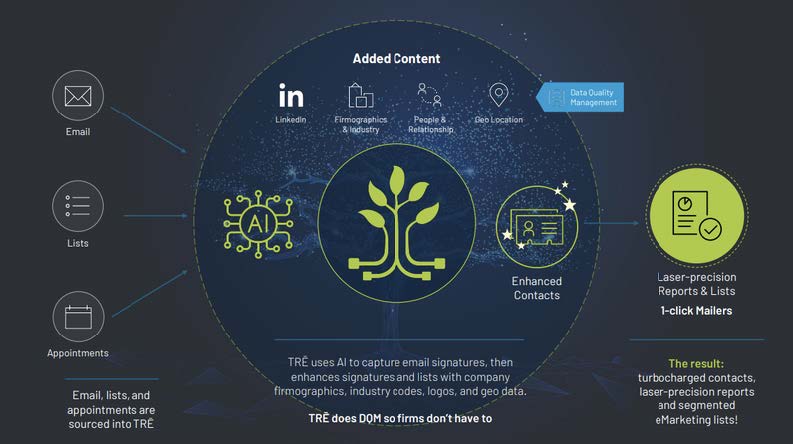
Contact and relationship intelligence. Contacts and relationships are loaded into TRĒ three ways:

Email – TRĒ AI captures email signatures and select metadata (name and email address), then transforms the signature into contacts. TRĒ AI also captures relationship intelligence between email sender and receiver, enabling the firm to answer the question: “who do we know?” at a company, an industry, or a place. Email signature recognition happens automatically, with contacts and relationship

List upload – your firm’s existing lists may be uploaded into your TRĒ AI system, additionally, your firm’s known by relationships may be uploaded, along with contact categories and notes.

Manual contact entry – contacts may also be entered manually
List Builder - how to search, filter, merge and bulk-edit contacts and known-by relationships
SEARCH
List Builder is where you will spend much of your time on TRĒ AI, building and refining lists before you export them into TRĒmail to execute eCampaigns.
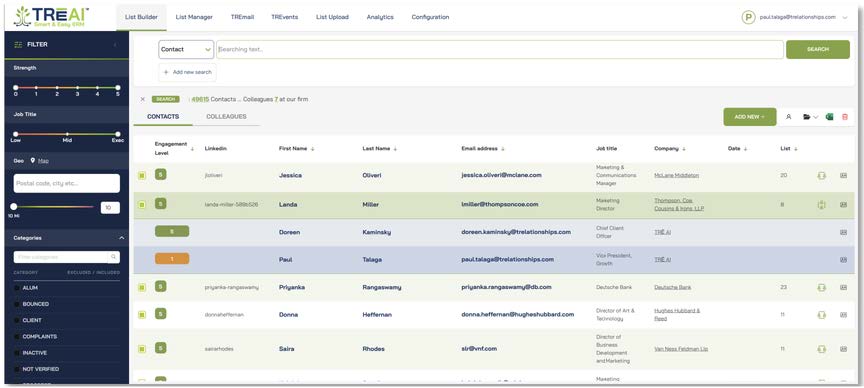
TRĒ List Builder
List builder search: List Builder offers basic and advanced search options, with the added ability to refine search results into laser precision lists using List Builder’s filter bar.
Basic search.
TRĒ List Builder searches can be as simple or sophisticated as you like.TRĒ AI’s basic search

Search fields include: All (all fields),Contact, Company, Title, Phone, Industry,Location, Domain, Email, Colleague, and Group. Simply select a field to search,enter a search term, and click “SEARCH”
Advanced search.
Add more fields to search by clicking the “Add new search” button. Search fields may be combined by using AND OR NOT operators. Additionally, search fields may be nested,such as in the example below, which creates the search formula INDUSTRY = “Investment banking” AND Location = “San Francisco” OR “New York” OR “Chicago”.

Flter bar.
List builder search results may be further refined into laser precision lists with TRĒ AI's filter bar. Filter by Relationship strength, Job title level, Geo radius, Categories, Date of last engagement, Company revenue, Company headcount, Company name, or Industry codes. TRĒ AI's geo radius feature enables you to find contacts within x miles/kilometers of a city or postal code.
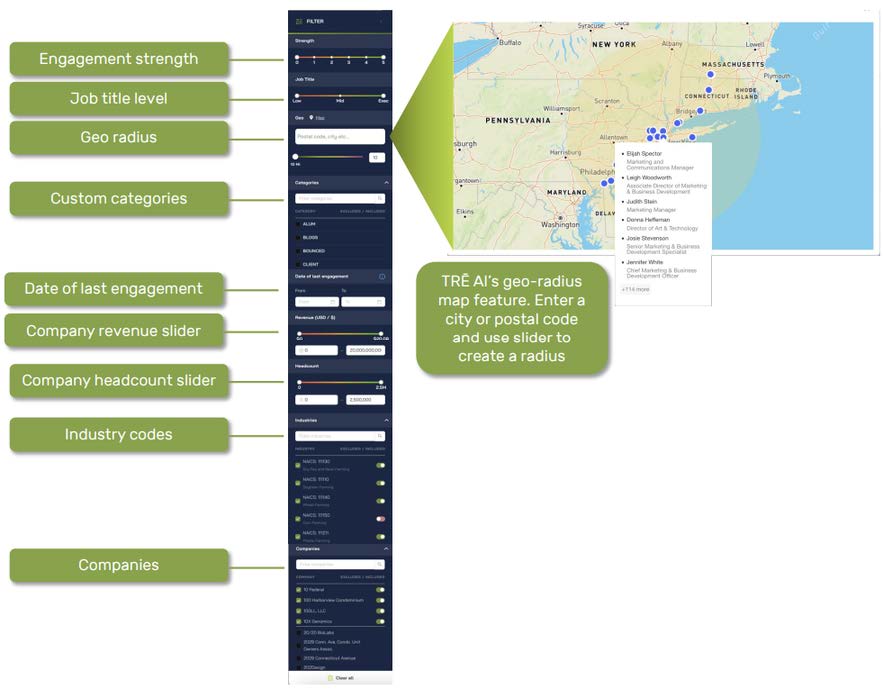
Filter bar - detail
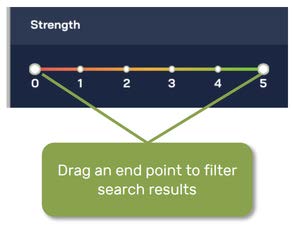
Engagement strength: TRĒ AI grows engagement strength automatically based on the quantity and quality of email traffic, as well as by calendar appointments. Scores may also be set manually, either by adjusting the scores in the contact edit view or when contacts are uploaded in lists. If scores are set manually, they will remain set at that level until adjusted by automated actions. A score of 5 is the highest engagement level.
A score of 0 means no engagement. To filter by job title level, drag the minimum and/or maximum Engagement strength slider bar end points to filter the contact list by engagement strength

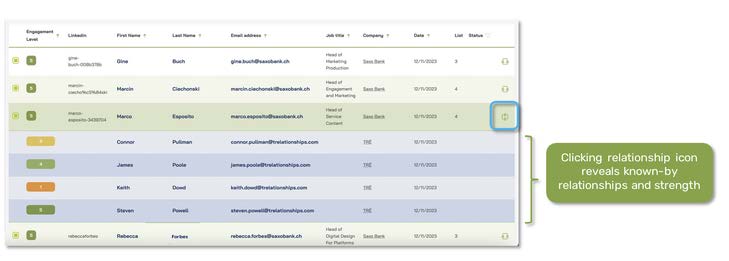
Additionally, clicking the Relationship icon in List Builder reveals the colleagues at your firm that know the contact, as well as how well they know the contact.
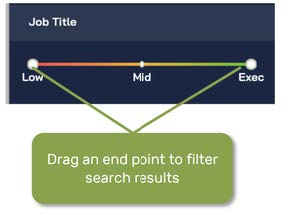
Job title level:
Job titles in TRĒ AI are automatically classified by threelevels, Low, Mid-level, and Executive.
Geo-radius filter
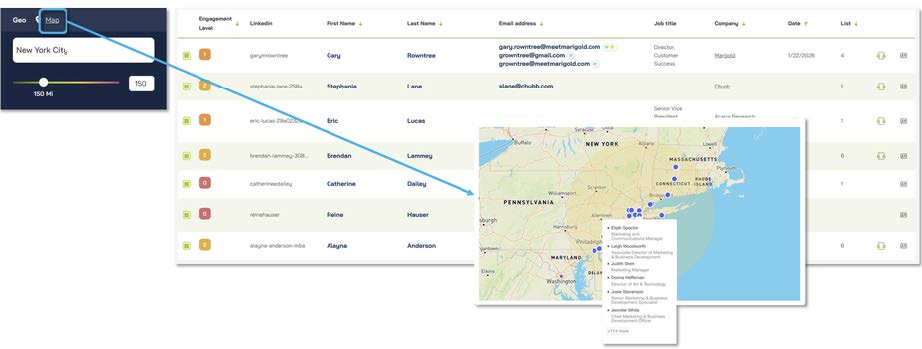
TRĒ AI contacts are automatically enhanced with longitude/latitude coordinates of where the contacts are located (location of contacts, not company HQ). Search results may be further refined by entering a location, such as a city or postal code, then entering a radius. Results can be viewed as a list in List Builder, or they may be viewed on a map.
Categories filter
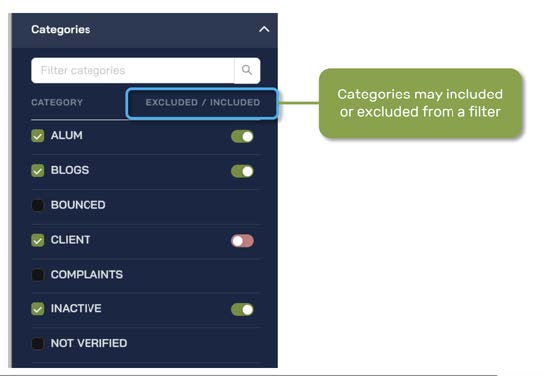
Custom categories may be easily created in TRĒ AI, then assigned to either companies, contacts, or both. Categories may also be surfaced in the filter bar if desired. Categories may included or excluded from the results in order to create high precision lists. Categories associated with eMarketing functions, such as Bounces and Unsubscribes are included in all TRĒ AI category sections and are automatically populated by TRĒMail, Vuture, or Concep.
Company revenue and headcount filters:
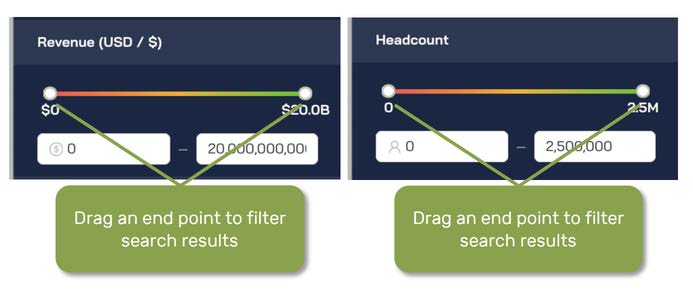
TRĒ AI automatically enhances contacts with the revenue and headcounts associated with the companies at which the contacts work. Either enter the values that bookend the revenue or headcount range you wish to filter the results to, or use the slider end points to select a range.
Industry code filters
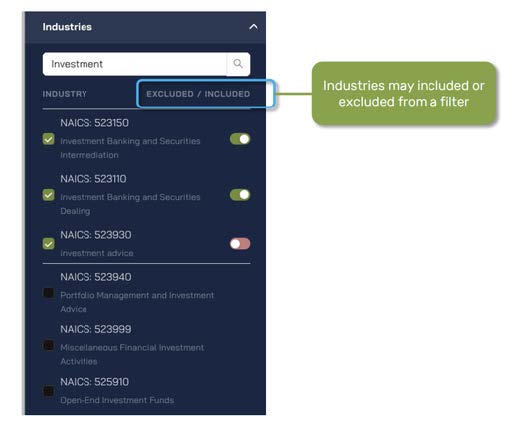
TRĒ AI automatically assigns 6-digit NAICS industry codes to the companies where contacts work. Search results may be filtered by one or more industry codes. Code may either be searched by keyword or NAICS code number, or they may be browsed. Codes may be included or excluded from filtered results to create high-precision results.
Company filters
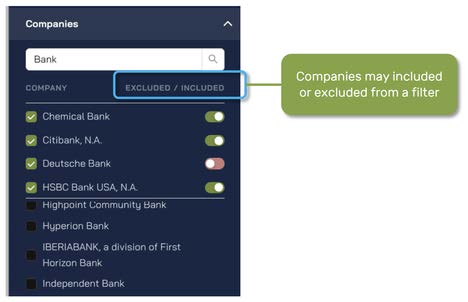
TRĒ AI automatically contacts to the companies where they work. Search results may be filtered by one or more industry codes. Company names may either be searched by keyword or they may be browsed. Companies may be included or excluded from filtered results to create high-precision results.
How to bulk edit contacts in list builder
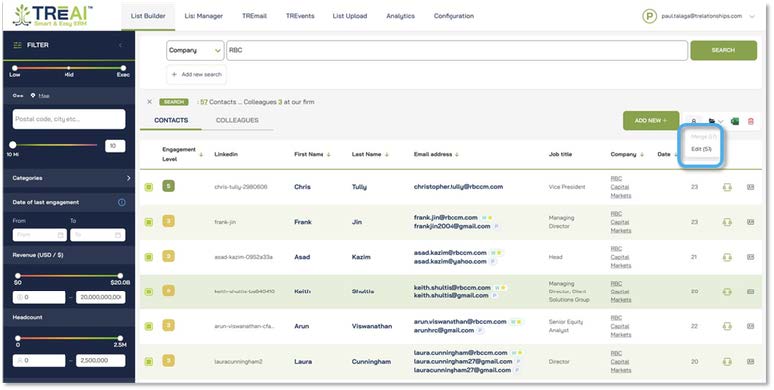
Once you have crafted the search results you want, you can bulk edit the entire list, if you like. Bulk edits can include categories, custom fields, and known-by colleagues
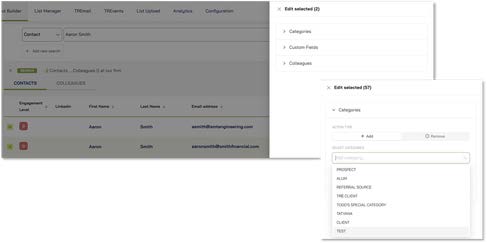
Clicking the Edit button will present the three possible edit categories, categories, custom fields, and known-by colleagues. In this example, clicking the Categories drop down menu offers a searchable/browseable list of categories that the list of selected contacts may be associated with.

Merge contacts from List Builder. In most cases, TRĒ AI automatically detects and merges duplicate contacts. However, if TRĒ AI misses a duplicate, you can easily merge contacts yourself. After retrieving the duplicates you wish to merge, clickthe Merge/Edit icon and select “Merge.”
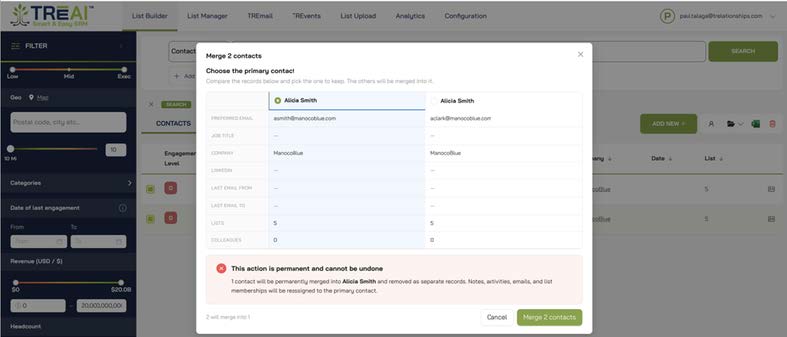
TRĒ AI will prompt you to ask which of the two contactsis the “Primary,” meaning which is the most current version to use for communications. After selecting, click the “Merge contacts” button.
LIST BUILDER - RESULTS
Contacts sourced into TRĒ AI from either email or uploaded legacy lists are automatically
enhanced with:
Known-by relationships – which professionals know each contact,and how well they know
them
LinkedIn links
Company revenue
Company headcount
Company industrycode(s)
Longitude and latitude coordinates of each contact,used for geo-radius location

Detail: Known-by relationships – Clicking the known-by icon on the right side of the contact record displays the colleagues at your firm and shows how well they know the contact on a scale from 1 (lowest) to 5 (highest).
LinkedIn links and contact profiles
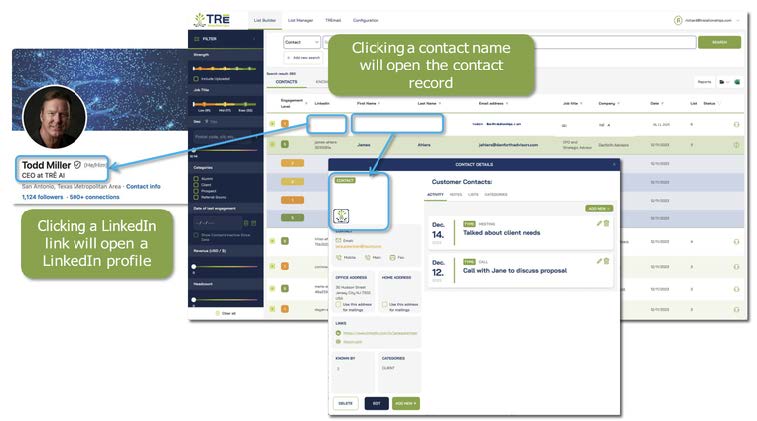
TRĒ AI automatically looks up LinkedIn links and displays them with the contact record. To view a LinkedIn profile, simply click the contact link. To view a contact profile, click the contact name
Company Records
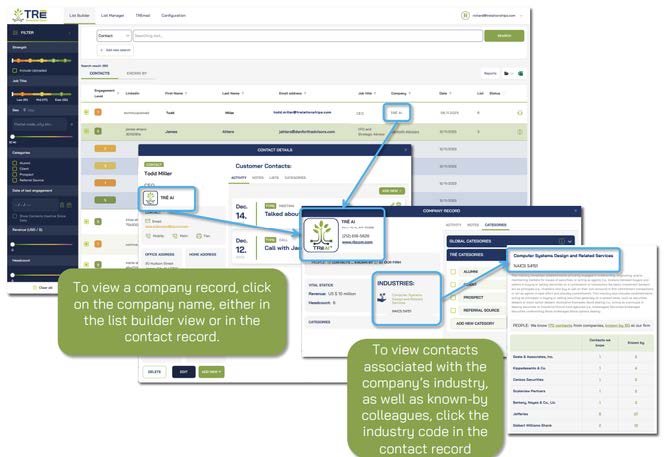
To view a company record associated with a contact, click on the company name, either in the list builder view or in the contact record. To view contacts associated with the company’s industry, as well as known-by colleagues, click the industry code in the contact record
Excel export
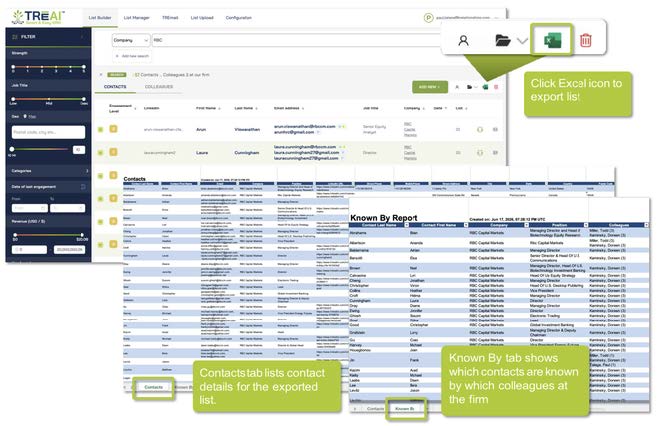
Click the Excel icon to export your list into an Excel workbook. ·The contacts tab listscontact details for the exportedlist ·The Known By tab shows which contacts are known by which colleagues at the firm
CONTACT DETAILS - MORE DETAILS
Create a contact
Most contacts are sourced to TRĒ AI from either email signatures or uploaded legacy lists, though contacts may be created manually by clicking the “ADD NEW” button in List Builder, then completing the form and clicking “SAVE.”
For email addresses with non-web domains,TRĒ AI will automatically attempt to find the correct company associated with the email address domain and associate the contact with the company

Edit a contact:
Click the “EDIT”button in the contact record.The contact form will be displayed. If the contact’s email address is changed, for email addresses with non-web domains, TRĒ AI will automatically attempt to find the correct company associated with the email address domain and associate the contact with the company.

Activity tab
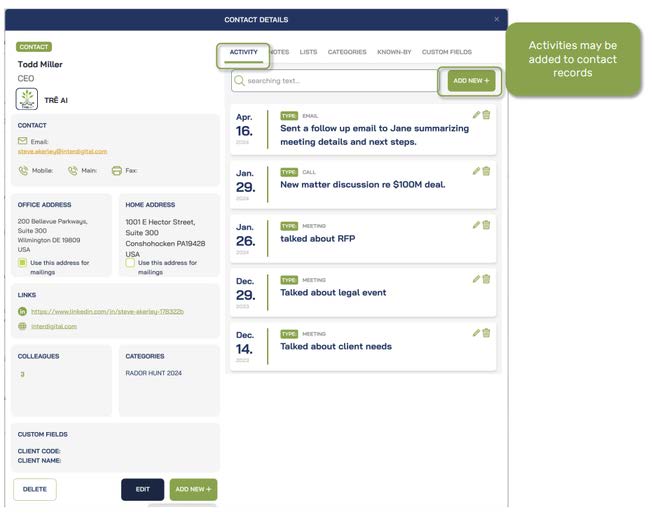
Click the Activity tab in the Contact Detailspane to view,add, or edit activities associated with a contact.
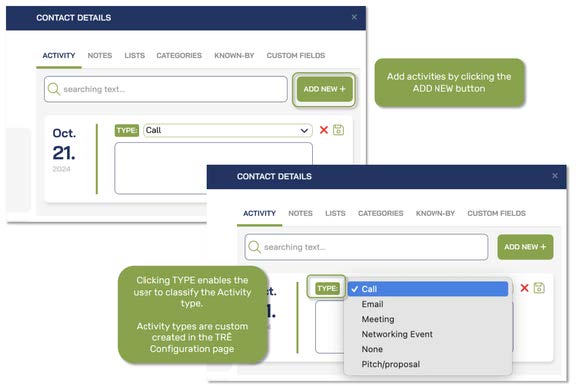
To create a new activity, click the ADD NEW + button, select an activity type, then enter the activity. TRĒ AI date stamps the activity.
Activity types are customized for your firm. Go to the Configuration page, click the CATEGORIES/ACTIVITY tab, then click the ACTIVITY TYPES drop down. Click ADD ACTIVITY TYPE to add an activity type to your TRĒ AI solution

Lists tab
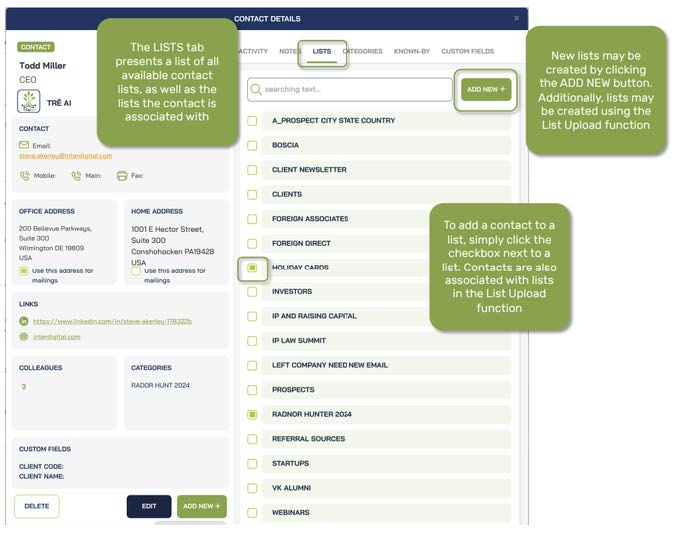
Clickthe Contact details Lists tab to see which lists the contact is associated with, or to add the contact to additional lists. Click the checkbox next to a list to add the contact to the list, or click the ADD NEW + button to create a new list. Lists may also be added with the List Upload function on the Configuration page. More on that later.
Categories tab
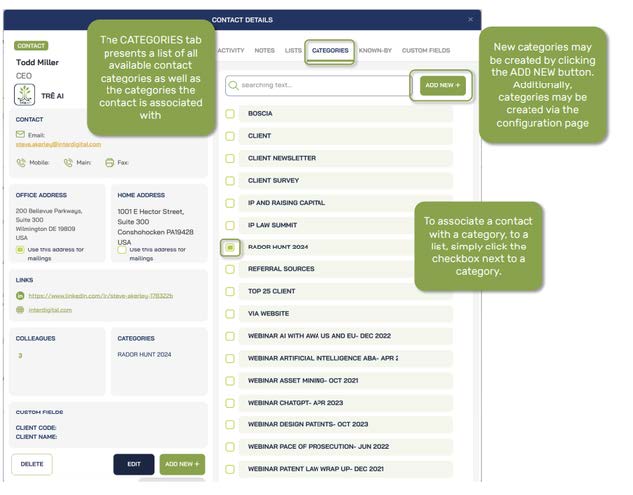
Click the Contact details Categories tab to view categories the contact is associated with, as well as to create new categories or assign the contact to categories

Categories may also be created and edited in the CATEGORIES/ACTIVITY tab on the Configuration page. Custom categories may also be presented as filter options in the List Builder filter bar.
Known by tab
Categories may also be created and edited in the CATEGORIES/ACTIVITY tab on the Configuration page. Custom categories may also be presented as filter options in the List Builder filter bar.
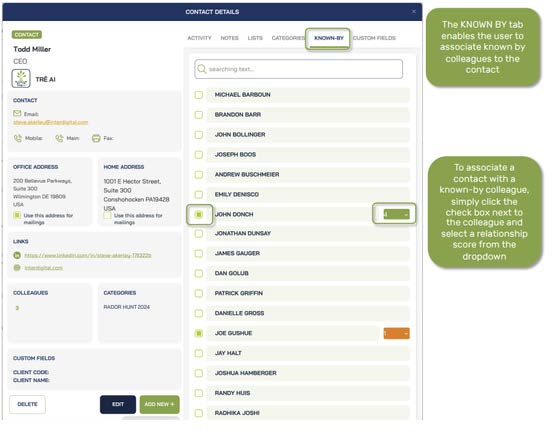
Known by tab. Click on the Contact details Known by tab to display the firm’s colleagues that know the contact, as well as how well they know the contact. Though TRĒ AI automatically captures relationship intelligence from email traffic and calendar appointments, known by relationships and scores may be manually entered, either through the Known by tab or with uploaded lists.
Custom fields tab
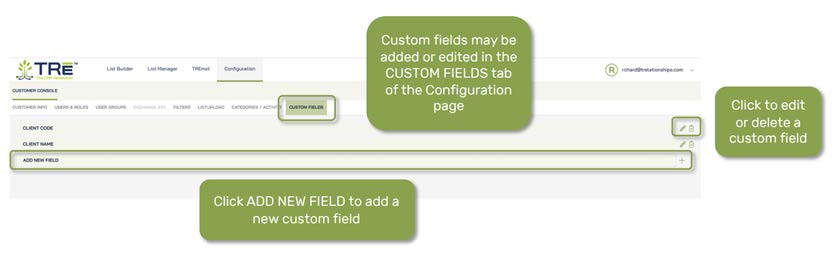
You may create custom fields with your TRĒ AI solution, which may be viewed and values edited in the Contact details CUSTOM FIELDS tab.

To create new custom fields, go to the CUSTOM FIELDS tab of the Configuration page, click ADD NEW FIELD, name your field and save it
SAVE / RETREIVE
Save/retrieve lists and searches.
Both searches and lists may be savedand retrieved in TRĒ AI. What’s the difference between a saved search and a saved list?
A saved list is static and doesn’t change, unless contacts are manually added to or deleted from it, or it is merged with another list. A saved search is dynamic, with the results refreshing each time the search is retrieved. Saved searches tend to be used more often for complex searches, eliminating the need to re-enter the search variables.
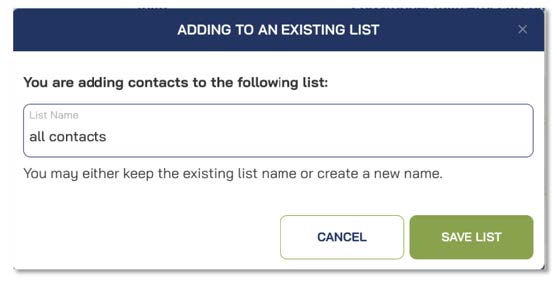
To save a list, simply select “Save List” from the folder icon dropdown menu on the upper right side of the List Builder page and name the list. If the list name matches an existing list name, TRĒ AI will notify you with a prompt and ask you if you want to merge the contacts to be saved with an existing list.
Saved lists will be automatically synced with TRĒmailand TRĒevents, as well as Vuture or Concep if you have synced either of these solutions with TRĒ AI
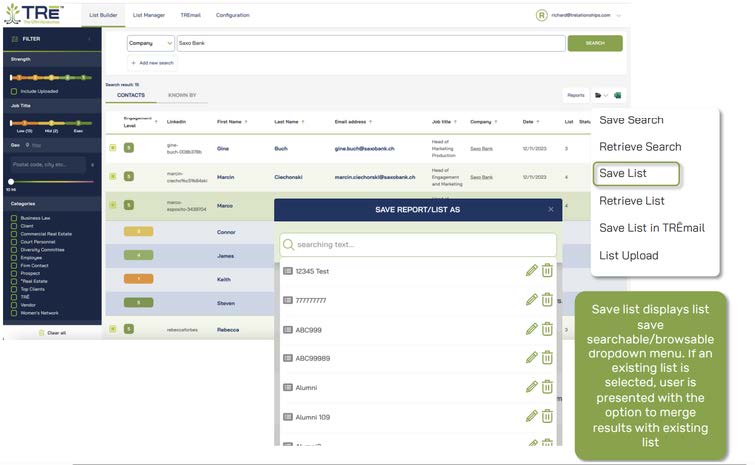
To retrieve a list go to the same dropdown, select “Retrieve List”and select the list, eitherby browsing the list of lists, or use the type-ahead function to type the first few letters of the list name.

The process of saving and retrieving searches is identical to saving and retrieving lists.Simply select “Save Search” of “Retrieve Search” from the folder dropdown menu.
Merge lists or add contacts to an existing list. Merging lists or adding contacts to an existing list is easy. Simply retrieve a list and save it to another list. You will be prompted that you are adding contacts to an existing list and given the option to create a new list name.

List manager
ATTORNEY ALERTS LIST REVIEW
CTRĒ’s List Manager gives you the option to review lists with attorneys or their assistants before executing mailers with TRĒmail.
If you wish to review lists with some or all of your attorneys before executing mailers, once you have saved or retrieved a list, click the List Manager tab. You’ll see a list of your firm’s attorneys. You may send lists for review directly to any of your attorneys, or you may designate a delegate/assistant to review the list. The attorney or delegate will only receive their known-by contacts in the list.
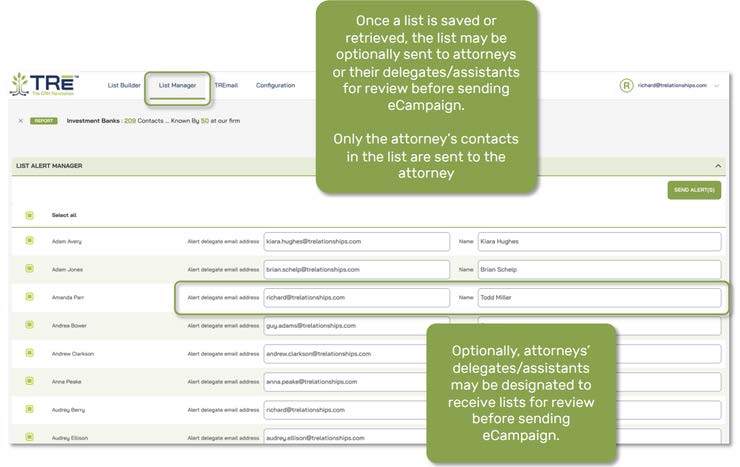
Once the SEND ALERTSbutton is clicked,each of the selected attorneys or delegates will receive
an alert, with a link to their portion of the list

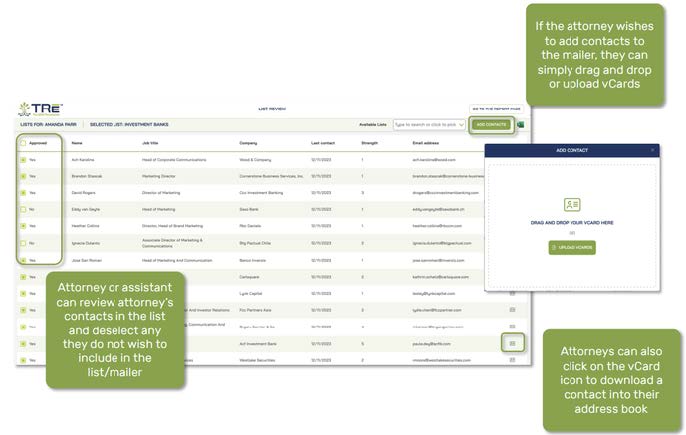
The recipient may uncheck any of the contacts they do not wish a mailer to be sent to. Additionally, they may download vCards of any contacts they don’t presently have in their address books. Conversely, if they have a vCard they would like to add to the list, they may add it to the list by clicking the ADD CONTACTS button. If the attorney adds a vCard, TRĒ will add the contact to the list and establish the known by relationship with the attorney.
CONTACT STATUS FILTER
TRĒ tracks approved, rejected,pending, and conflicted contacts sent for review via List Manager. The Status dropdown in List Builder enables you to filter contacts by status.
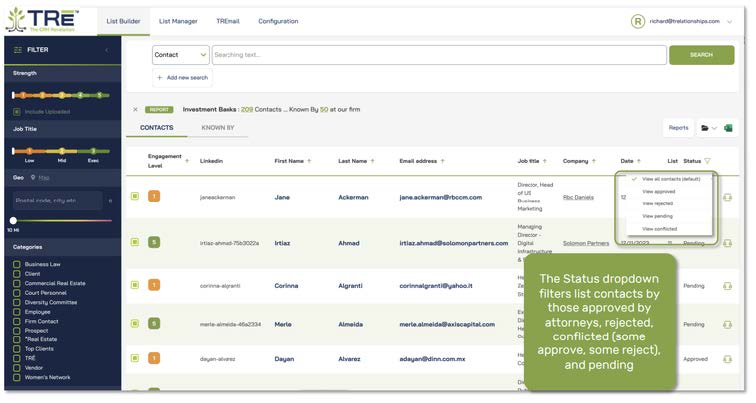
Statuse include:
Pending (colleagues have not reviewedthe contact), Approved, Rejected, and Conflicted:
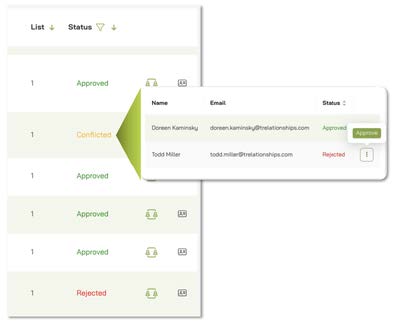
Regarding Conflicted contacts, clicking on the status will show which colleague(s) have approved the contact and which have rejected. The status may be changed in this pop-up when the conflict is resolved.
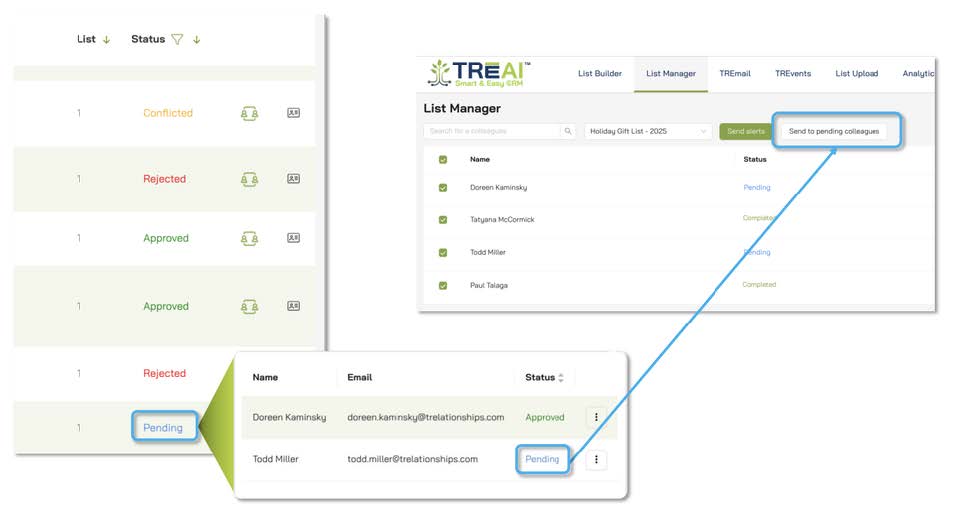
Pending contacts have not yet been reviewed. Lists may be resent to colleagues who have not yet reviewed their lists (without resending to colleagues who have completed their review) by clicking the “Send to pending colleagues” button in List Manager.

Configuration
LIST UPLOAD
The legacy list upload/data cleanse/enhance function is one of TRĒ AI’s most powerful features. TRĒ AI automatically identifies contacts that have changed jobs and updates them to their current companies and roles. Additionally, TRĒ AI enhances contacts with LinkedIn links, company revenue, company headcount, industry codes, and geo-radius (longitude and latitude). Additionally, if the uploaded contact has email or calendar engagement with a colleague, TRĒ AI will merge the contact records. Finally, TRĒ AI automatically searches for duplicates and merges them.
List Upload Option 1
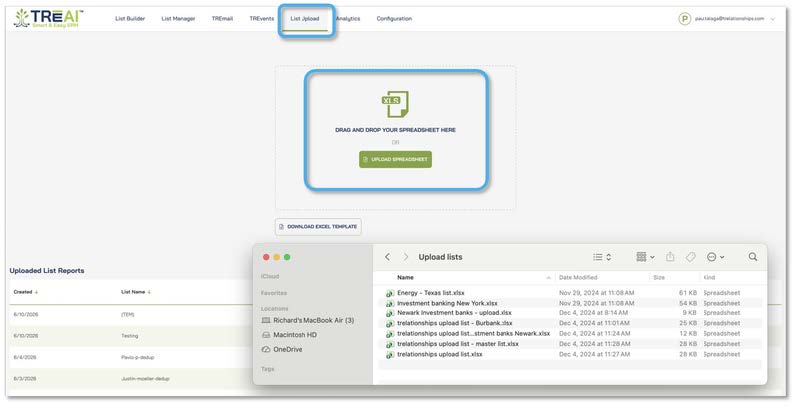
Smart Field Mapper . The easiest way to upload a legacy list is to use TRĒ AI’s Smart Field Mapper. To load a list, click the “LIST UPLOAD”tab, then either drag and drop a list for upload, or click the “UPLOAD SPREADSHEET” button and select an Excel spreadsheet for upload.
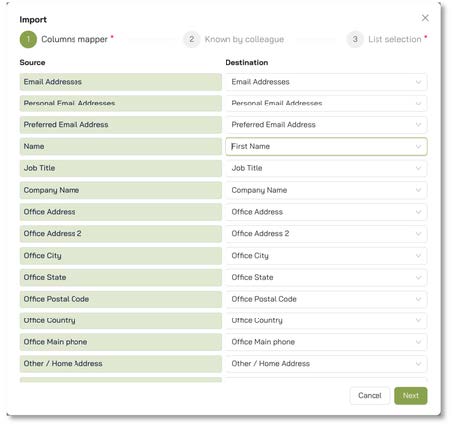
TRĒ AI’s smart fieldmapper will automatically map fields from the sourcelist to the TRĒ AI destination. You are able to make edits to the mapping in the field mapping utility.
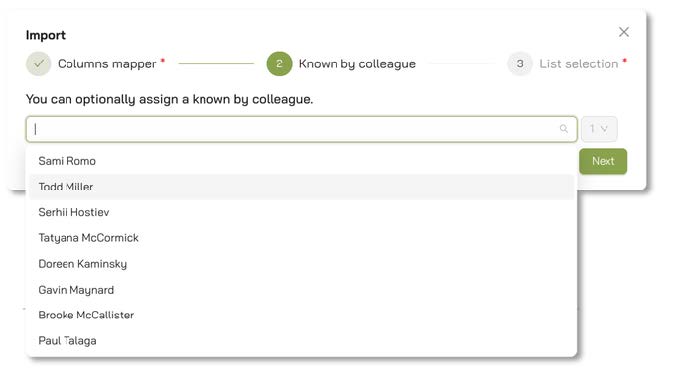
If you are uploading a list or an address book for a particular colleague, TRĒ AI provides the option to associate the contacts with that colleague by selecting from a drop down. If you like, you can preset the contact-colleague engagement scores. If you don’t set the scores,TRĒ AI will grow them organically using email and calendar traffic.
Once your list has uploaded, you can download a report that summarizes and details the following:
Total ContactsUploaded
Duplicate Contacts(not uploaded)
Updated Contacts
Validated Contacts(uploaded)
Invalid Contacts(not uploaded)
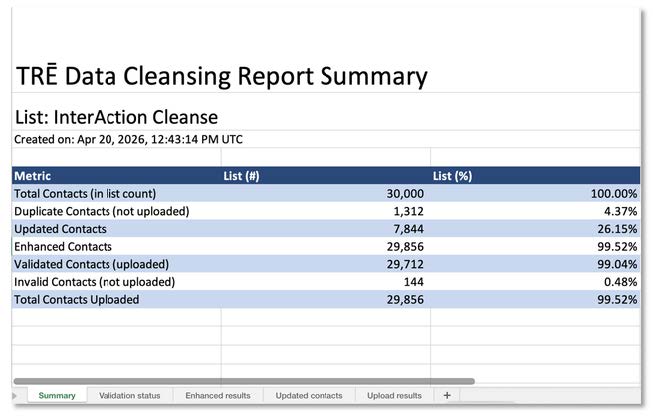
List Upload Summary

List upload contact update detail
You can then see your uploaded, updated, and enhanced contacts in List Builder.
List Upload Option2: List UploadTemplate
The List Upload Template is the best option for lists that you would like to pre-configure in the following ways:
Pre-assign categories to contacts
Pre-assign and populate customfields
Pre-assign delegates (assistants) for attorneys
Pre-assign multipleknown-by colleagues to contacts
Once your TRĒ AI solution has been fully configured with categories and custom fields, click the“DOWNLOAD EXCEL TEMPLATE” button. The template that will be downloaded will include all categories and custom fields configured in your TRĒ AI solution.Once you populate the template, you can then upload your spread sheet using the same steps as in Option 1 above.

The Excel upload template also enables you to add multiple known-by relationships for a colleagues. In the abridged example below, a separate row is addedf or Todd Miller,who, along with fellow colleague Guy Adams, knows Dylan Fairbairn at Axinn, Veltrop.

This example shows customcategories included in downloaded templates

USERS & ROLES
The USERS& ROLES tab enables administrators to add and manage users and roles. .
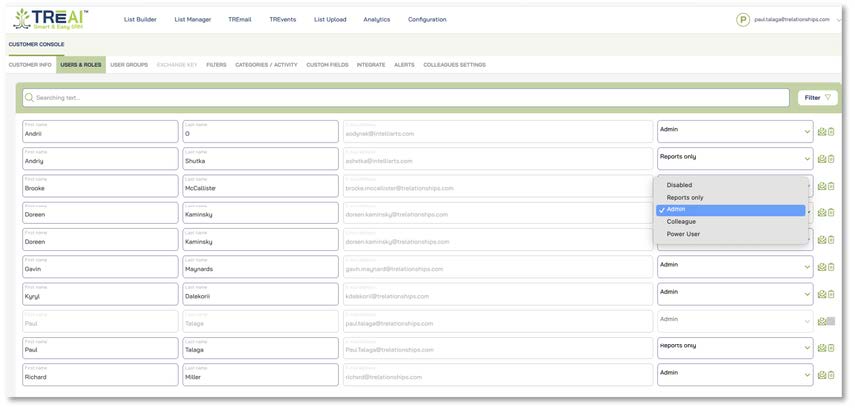
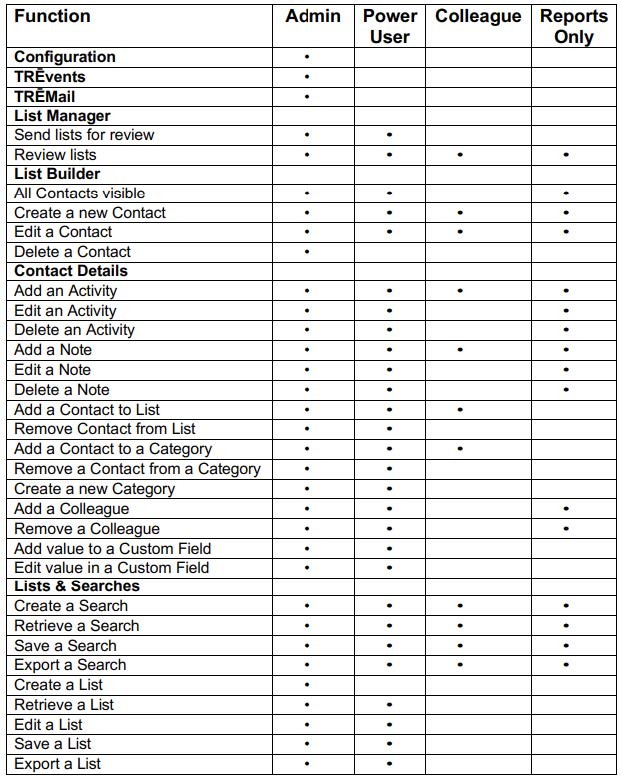
NOTE: When you send listsfor review via List Manager,the recipient, or their delegate, will have an account automatically created with a REPORTS ONLY role.
Please see the attachedtable for a detailed breakdown of the roles
USER GROUPS
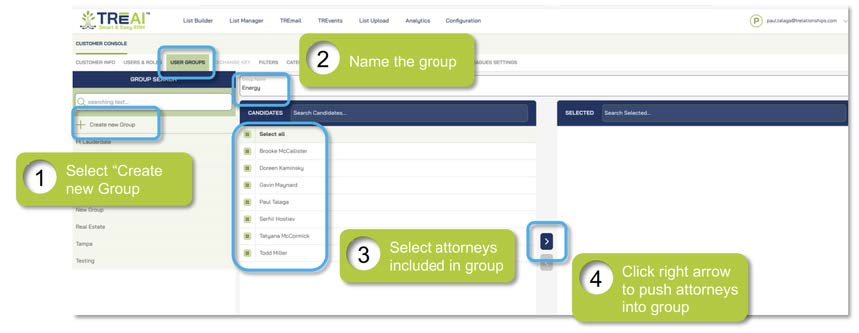
The USER GROUPS tab enables admins to create attorney groups. Groups can be anything the admin wishes, including practice groups and offices. Groups are searchable in List Builder.When a group is searched, List Builder respond swith all of the contacts known by the attorneys in the group, as well as the known-by relationships. Additionally, practice groups can be used to identify whitespace in TRĒ AI’s TRĒ-Luminate
practice group whitespace/cross sell solution.
FILTERS
FILTERS tab.
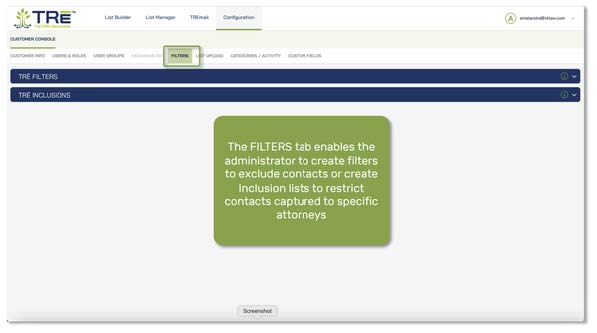
The FILTERS tab enables the administrator to create filters to exclude contacts or create Inclusion lists to restrict contacts captured to specific attorneys
The FILTERS tab dropdown enables the administrator to create filters for contacts they wish to exclude

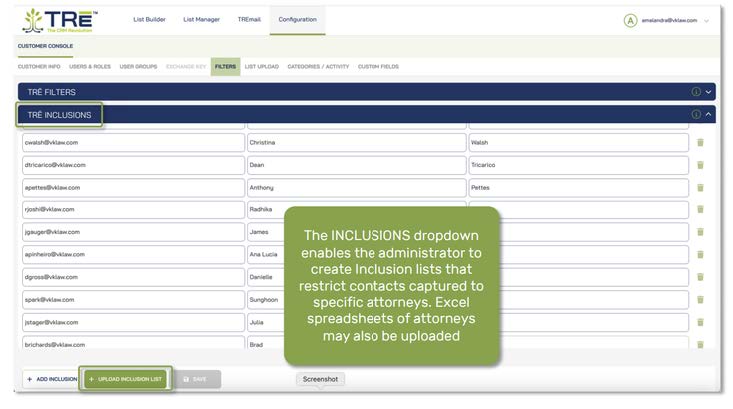
The INCLUSIONS dropdown enables the administrator to create Inclusion lists that restrict contacts captured to specific attorneys. Excel spreadsheets of attorneys may also be uploaded
CATEGORIES/ACTIVITY
Click the CATEGORIES bar to review, create, and edit categories, to which contacts and/or companies may be assigned. Additionally, Categories may be assigned to the List Builder filter bar, enabling you to filter contact results sets by the categories they’reassigned to. For example, you may only wish to view those contacts who are clients in your results set

Click the ACTIVITY TYPESbar to review, create, and edit activitytypes for use in the Contact details Activity tab

CUSTOM FIELDS
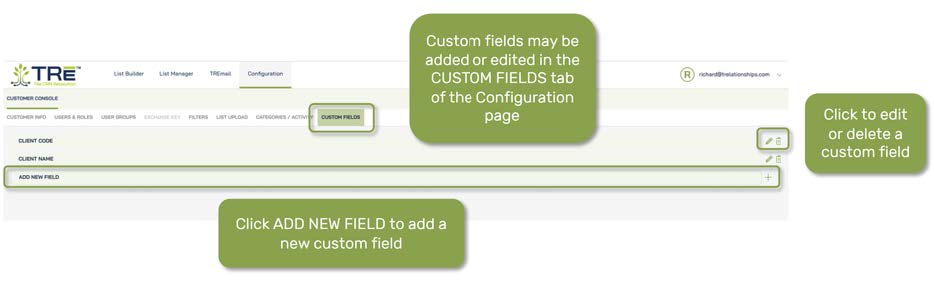
Custom fields may be added or edited in the CUSTOMFIELDS tab of the Configuration page. Custom fields are displayed in the Contact details pane. Simply click ADD NEW FIELD to add a new customfield.
INTEGRATE
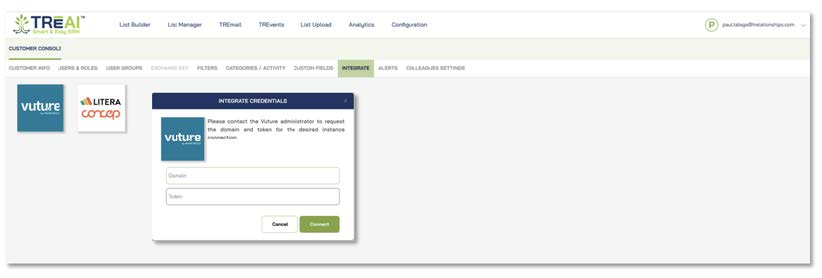
INTEGRATE tab. Thirdparty applications may be integrated with TRĒ AI by clickingthe icon and entering the necessary authentication credentials.
Alerts tab
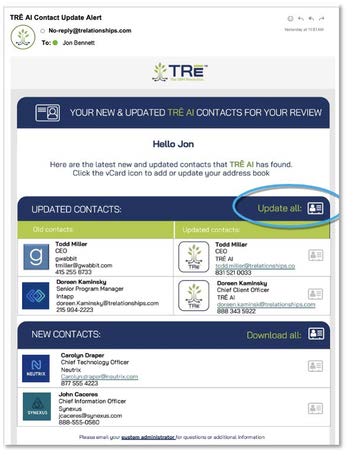
TRĒ AI offers an automated email alert that notifies any/all colleagues of new and updated contacts TRĒ AI has found in email signatures. Simply select the attorneys to receive the alert and the alert frequency (daily, weekly, or monthly). Optionally, a delegate/assistant may be entered to receive the alert on behalf of the attorney.

The resulting alert looks like this:
Colleagues setting tab
This tab enables you to determine which attorneys’ email signature contacts are captured and whether or not capturedcontacts are visiblein TRĒ AI List Builder



Copyright 2026 TRĒ AI, Inc. All rights reserved.
“TRĒ”, “TRĒ Effect”, “TRĒ AI”, and the TRĒ tree logos are trademarks of TRĒ AI, Inc.
Copyright 2026 TRĒ AI, Inc. All rights reserved.
“TRĒ”, “TRĒ Effect”, “TRĒ AI”, and the TRĒ tree logos are trademarks of TRĒ AI, Inc.
Copyright 2026 TRĒ AI, Inc. All rights reserved.
“TRĒ”, “TRĒ Effect”, “TRĒ AI”, and the TRĒ tree logos are trademarks of TRĒ AI, Inc.
WELCOME TO THE
TRĒ KNOWLEDGE CENTER
How can we help?
Search the Knowledge Center…
On this page
How contact and relationship intelligence is sourced into TRĒ AI
List Builder
2.1 Search
2.2 Search Results
2.3 Contact Edit
2.4 Save / Retrieve
List Manager
3.1 Attorney alerts and list review
3.2 List Builder contact status filter
Configuration
4.1 List upload
4.2 Users & roles
4.3 User groups
4.4 Filters
4.5 Categories / Activities
4.6 Custom Fields
4.7 Integration
Welcome to TRĒ AI! TRĒ AI is a relationship intelligence engine, enabling your firm to capture and enhance contact and relationship intelligence, then put that content to work building lists and executing Campaigns with TRĒ AI’s built-in TRĒmail solution and create and management events with TRĒ AI’s optional TRĒvents events management solution. This document will walk you through TRĒ’s array of features and capabilities.
How contact and relationship intelligence is sourced into TRĒ
Contact and relationship intelligence. Contacts and relationships are loaded into TRĒ AI three ways:
Email – TRĒ AI captures email signatures and select metadata (name and email address), then transforms the signature into contacts. TRĒ AI also captures relationship intelligence between email sender and receiver, enabling the firm to answer the question: “who do we know?” at a company, an industry, or a place. Email signature recognition happens automatically, with contacts and relationship
List upload – your firm’s existing lists may be uploaded into your TRĒ AI system, additionally, your firm’s known by relationships may be uploaded, along with contact categories and notes.
Manual contact entry – contacts may also be entered manually
List Builder - how to search, filter, merge and bulk-edit contacts and known-by relationships
SEARCH
List Builder is where you will spend much of your time on TRĒ AI, building and refining lists before you export them into TRĒmail to execute eCampaigns.
TRĒ List Builder
List builder search: List Builder offers basic and advanced search options, with the added ability to refine search results into laser precision lists using List Builder’s filter bar.
Basic search.
TRĒ AI List Builder searchescan be as simple or sophisticated as you like.TRĒ AI’s basic search
Search fields include: All (all fields),Contact, Company, Title, Phone, Industry,Location, Domain, Email, Colleague, and Group. Simply select a field to search,enter a search term, and click “SEARCH”
Advanced search.
Add more fields to search by clicking the “Add new search” button. Search fields may be combined by using AND OR NOT operators. Additionally, search fields may be nested,such as in the example below, which creates the search formula INDUSTRY = “Investment banking” AND Location = “San Francisco” OR “New York” OR “Chicago”.
Flter bar.
List builder search results may be further refined into laser precision lists with TRĒ AI's filter bar. Filter by Relationship strength, Job title level, Geo radius, Categories, Date of last engagement, Company revenue, Company headcount, Company name, or Industry codes. TRĒ AI's geo radius feature enables you to find conctacts within x miles/kilometers of a city or postal code.
Filter bar - detail
Engagement strength: TRĒ AI grows engagement strength automatically based on the quantity and quality of email traffic, as well as by calendar appointments. Scores may also be set manually, either by adjusting the scores in the contact edit view or when contacts are uploaded in lists. If scores are set manually, they will remain set at that level until adjusted by automated actions. A score of 5 is the highest engagement level.
A score of 0 means no engagement. To filter by job title level, drag the minimum and/or maximum Engagement strength slider bar end points to filter the contact list by engagement strength
Additionally, clicking the Relationship icon in List Builder reveals the colleagues at your firm that know the contact, as well as how well they know the contact.
Job title level:
Job titles in TRĒ AI are automatically classified by threelevels, Low, Mid-level, and Executive.
Geo-radius filter
TRĒ AI contacts are automatically enhanced with longitude/latitude coordinates of where the contacts are located (location of contacts, not company HQ). Search results may be further refined by entering a location, such as a city or postal code, then entering a radius. Results can be viewed as a list in List Builder, or they may be viewed on a map.
Categories filter
Custom categories may be easily createdin TRĒ AI, then assignedto either companies, contacts, or both. Categories may also be surfaced in the filter bar if desired. Categories may included or excluded from the results in order to create high precision lists. Categories associated with eMarketing functions, such as Bounces and Unsubscribes are included in all TRĒ AI category sectionsand are automatically populated by TRĒMail,Vuture, or Concep.
Company revenue and headcount filters:
TRĒ AI automatically enhances contacts with the revenue and headcounts associated with the companies at which the contacts work. Either enter the values that bookend the revenue or headcount range you wish to filter the results to, or use the slider end points to select a range.
Industry code filters
TRĒ AI automatically assigns 6-digit NAICS industry codes to the companies where contacts work. Search results may be filtered by one or more industry codes. Code may either be searched by keyword or NAICS code number, or they may be browsed. Codes may be included or excluded from filtered results to create high-precision results.
Company filters
TRĒ AI automatically contacts to the companies where they work. Search results may be filtered by one or more industry codes. Company names may either be searched by keyword or they may be browsed. Companies may be included or excluded from filtered results to create high-precision results.
How to bulk edit contacts in list builder
Once you have crafted the search results you want, you can bulk edit the entire list, if you like. Bulk edits can include categories, custom fields, and known-by colleagues
Clicking the Edit button will present the three possibleedit categories, categories, custom fields, and known-by colleagues. In this example, clicking the Categories drop down menu offers a searchable/browseable list of categories that the list of selected contacts may be associated with.
Merge contacts from List Builder. In most cases, TRĒ AI automatically detects and merges duplicate contacts. However, if TRĒ AI misses a duplicate, you can easily merge contacts yourself. After retrieving the duplicates you wish to merge, clickthe Merge/Edit icon and select “Merge.”
TRĒ AI will prompt you to ask which of the two contactsis the “Primary,” meaning which is the most current version to use for communications. After selecting, click the “Merge contacts” button.
LIST BUILDER - RESULTS
Contacts sourcedinto TRĒ AI from eitheremail or uploadedlegacy lists are automatically
enhanced with:
Known-by relationships – which professionals know each contact,and how well they know
them
LinkedIn links
Company revenue
Company headcount
Company industrycode(s)
Longitude and latitude coordinates of each contact,used for geo-radius location
Detail: Known-by relationships – Clicking the known-by icon on the right side of the contact record displays the colleagues at your firm and shows how well they know the contact on a scale from 1 (lowest) to 5 (highest).
LinkedIn links and contact profiles
TRĒ AI automatically looks up LinkedIn links and displays them with the contactrecord. To view a LinkedInprofile, simply clickthe contact link. To view a contact profile, click the contact name
Company Records
To view a company record associated with a contact, click on the company name, either in the list builder view or in the contact record. To view contacts associatedwith the company’s industry, as well as known-bycolleagues, click the industry code in the contact record
Excel export
Click the Excel icon to export your list into an Excel workbook. ·The contacts tab listscontact details for the exportedlist ·The Known By tab shows which contacts are known by which colleagues at the firm
CONTACT DETAILS - MORE DETAILS
Create a contact
Most contacts are sourced to TRĒ AI from either email signatures or uploaded legacy lists,though contacts may be createdmanually by clickingthe “ADD NEW” button in List Builder, then completing the form and clicking “SAVE.”
For email addresses with non-web domains,TRĒ AI will automatically attemptto find the correct company associated with the email address domain and associate the contact with the company
Edit a contact:
Click the “EDIT”button in the contact record.The contact form will be displayed. If the contact’s email address is changed, for email addresses with non-web domains, TRĒ AI will automatically attempt to find the correct company associated with the email address domain and associate the contact with the company.
Activity tab
Click the Activity tab in the Contact Detailspane to view,add, or edit activities associated with a contact.
To create a new activity, click the ADD NEW + button, select an activitytype, then enter the activity. TRĒ date stamps the activity.
Activity types are customized for your firm. Go to the Configuration page, click the CATEGORIES/ACTIVITY tab, then click the ACTIVITY TYPES drop down. Click ADD ACTIVITY TYPE to add an activity type to your TRĒ solution
Lists tab
Clickthe Contact detailsLists tab to see whichlists the contactis associated with,or to add the contact to additional lists. Click the checkbox next to a list to add the contact to the list, or click the ADD NEW + button to create a new list. Lists may also be added with the List Upload function on the Configuration page. More on that later.
Categories tab
Click the Contact detailsCategories tab to view categories the contact is associated with, as well as to create new categories or assign the contact to categories
Categories may also be created and edited in the CATEGORIES/ACTIVITY tab on the Configuration page.Custom categories may also be presented as filter optionsin the List Builder filter bar.
Known by tab
Categories may also be created and edited in the CATEGORIES/ACTIVITY tab on the Configuration page.Custom categories may also be presented as filter optionsin the List Builder filter bar.
Known by tab. Click on the Contact detailsKnown by tab to display the firm’s colleagues that know the contact, as well as how well they know the contact. Though TRĒ AI automatically captures relationship intelligence from email traffic and calendar appointments, known by relationships and scores may be manually entered, either through the Known by tab or with uploaded lists.
Custom fields tab
You may create custom fields with your TRĒ AI solution, which may be viewed and values edited in the Contact details CUSTOM FIELDS tab.
To create new custom fields, go to the CUSTOM FIELDS tab of the Configuration page, click ADD NEW FIELD, name your field and save it
SAVE / RETREIVE
Save/retrieve lists and searches.
Both searches and lists may be savedand retrieved in TRĒ AI. What’s the difference between a saved search and a saved list?
A saved list is static and doesn’t change,unless contacts are manually added to or deleted from it, or it is merged with another list. A saved search is dynamic, with the results refreshing each time the search is retrieved. Saved searches tend to be used more oftenfor complex searches, eliminating the need to re-enterthe search variables.
To save a list, simply select “Save List” from the folder icon dropdown menu on the upper right side of the List Builder page and name the list. If the list name matches an existing list name, TRĒ AI will notify you with a prompt and ask you if you want to merge the contacts to be saved with an existing list.
Saved lists will be automatically synced with TRĒmailand TRĒevents, as well as Vuture or Concep if you have synced either of these solutions with TRĒ AI
To retrieve a list go to the same dropdown, select “Retrieve List”and select the list, eitherby browsing the list of lists, or use the type-ahead function to type the first few letters of the list name.
The process of saving and retrieving searchesis identical to saving and retrieving lists. Simply select “Save Search” of “Retrieve Search” from the folder dropdown menu.
Merge lists or add contactsto an existing list. Merginglists or addingcontacts to an existing list is easy. Simply retrieve a list and save it to another list. You will be prompted that you are adding contacts to an existing list and given the option to create a new list name.
List manager
ATTORNEY ALERTS LIST REVIEW
CTRĒ’s List Manager givesyou the optionto review listswith attorneys or their assistants before executing mailers with TRĒmail.
If you wish to review lists with some or all of your attorneys before executing mailers, once you have saved or retrieved a list, click the List Manager tab. You’ll see a list of your firm’s attorneys. You may send listsfor review directlyto any of your attorneys, or you may designate a delegate/assistant to review the list. The attorney or delegate will only receivetheir known-by contacts in the list.
Once the SEND ALERTSbutton is clicked,each of the selected attorneys or delegates will receive
an alert, with a link to their portion of the list
The recipient may uncheck any of the contacts they do not wish a mailer to be sent to. Additionally, they may download vCards of any contacts they don’t presently have in their address books.Conversely, if they have a vCard they would like to add to the list, they may add it to the list by clicking the ADD CONTACTS button. If the attorney adds a vCard, TRĒ AI will add the contact to the list and establish the known by relationship with the attorney.
CONTACT STATUS FILTER
TRĒ AI tracks approved, rejected,pending, and conflicted contacts sent for review via List Manager. The Status dropdown in List Builder enables you to filter contacts by status.
Statuse include:
Pending (colleagues have not reviewedthe contact), Approved, Rejected, and Conflicted:
Regarding Conflicted contacts, clicking on the status will show which colleague(s) have approvedthe contact and whichhave rejected. The status may be changedin this pop-upwhen the conflict isresolved.
Pending contacts have not yet been reviewed. Listsmay be resent to colleagues who have not yetreviewed their lists (without resending to colleagues who have completed their review) by clickingthe “Send to pending colleagues” button in List Manager.
Configuration
LIST UPLOAD
The legacy list upload/data cleanse/enhance function is one of TRĒ AI’s most powerful features. TRĒ AI automatically identifies contacts that have changed jobs and updates them to their current companies and roles. Additionally, TRĒ AI enhances contacts with LinkedIn links, company revenue, company headcount, industry codes, and geo-radius (longitude and latitude). Additionally, if the uploaded contact has email or calendar engagement with a colleague, TRĒ AI will merge the contact records. Finally, TRĒ AI automatically searches for duplicates and merges them.
List Upload Option 1
Smart Field Mapper . The easiest way to upload a legacy list is to use TRĒ AI’s Smart Field Mapper. To load a list, click the “LIST UPLOAD”tab, then either drag and drop a list for upload, or click the “UPLOAD SPREADSHEET” button and select an Excel spreadsheet for upload.
TRĒ AI’s smart fieldmapper will automatically map fields from the sourcelist to the TRĒ AI destination. You are able to make edits to the mapping in the field mapping utility.
If you are uploading a list or an address book for a particular colleague, TRĒ AI provides the option to associate the contacts with that colleague by selecting from a drop down. If you like, you can preset the contact-colleague engagement scores. If you don’t set the scores,TRĒ AI will grow them organically using email and calendar traffic.
Once your list has uploaded, you can download a report that summarizes and details the following:
Total ContactsUploaded
Duplicate Contacts(not uploaded)
Updated Contacts
Validated Contacts(uploaded)
Invalid Contacts(not uploaded)
List Upload Summary
List upload contact update detail
You can then see your uploaded, updated, and enhanced contacts in List Builder.
List Upload Option2: List UploadTemplate
The List Upload Templateis the best option for lists that you wouldlike to pre-configure inthe following ways:
Pre-assign categories to contacts
Pre-assign and populate customfields
Pre-assign delegates (assistants) for attorneys
Pre-assign multipleknown-by colleagues to contacts
Once your TRĒ AI solution has been fully configured with categories and custom fields, click the“DOWNLOAD EXCEL TEMPLATE” button. The template that will be downloaded will include all categories and custom fields configured in your TRĒ AI solution.Once you populate the template, you can then upload your spread sheet using the same steps as in Option 1 above.
The Excel upload template also enables you to add multiple known-by relationships for a colleagues. In the abridged example below, a separate row is addedf or Todd Miller,who, along with fellow colleague Guy Adams, knows Dylan Fairbairn at Axinn, Veltrop.
This example shows customcategories included in downloaded templates
USERS & ROLES
The USERS& ROLES tab enables administrators to add and manage users and roles. .
NOTE: When you send listsfor review via List Manager,the recipient, or their delegate, will have an account automatically created with a REPORTS ONLY role.
Please see the attachedtable for a detailed breakdown of the roles
USER GROUPS
The USER GROUPS tab enables admins to create attorney groups. Groups can be anything the admin wishes, including practice groups and offices. Groups are searchable in List Builder.When a group is searched, List Builder respond swith all of the contacts known by the attorneys in the group, as well as the known-by relationships. Additionally, practice groups can be used to identify whitespace in TRĒ AI’s TRĒ-Luminate practice group whitespace/cross sell solution.
FILTERS
FILTERS tab.
The FILTERS tab enables the administrator to create filters to exclude contacts or create Inclusion lists to restrict contacts captured to specific attorneys
The FILTERS tab dropdown enables the administrator to create filters for contacts they wish to exclude
The INCLUSIONS dropdown enables the administrator to create Inclusion lists that restrict contacts captured to specific attorneys. Excel spreadsheets of attorneys may also be uploaded
CATEGORIES/ACTIVITY
Click the CATEGORIES bar to review, create, and edit categories, to which contacts and/or companies may be assigned. Additionally, Categories may be assigned to the List Builder filter bar, enabling you to filter contact results sets by the categories they’reassigned to. For example, you may only wish to view those contacts who are clients in your results set
Click the ACTIVITY TYPES bar to review, create, and edit activity types for use in the Contact details Activity tab
CUSTOM FIELDS
Custom fields may be added or edited in the CUSTOMFIELDS tab of the Configuration page. Custom fields are displayed in the Contact details pane. Simply click ADD NEW FIELD to add a new customfield.
INTEGRATE
INTEGRATE tab. Thirdparty applications may be integrated with TRĒ AI by clickingthe icon and entering the necessary authentication credentials.
Alerts tab
TRĒ AI offersan automated emailalert that notifiesany/all colleagues of new and updated contacts TRĒ AI has found in email signatures. Simply select the attorneys to receive the alert and the alert frequency (daily, weekly, or monthly). Optionally, a delegate/assistant may be entered to receive the alert on behalf of the attorney.
The resulting alert looks like this:
Colleagues setting tab
This tab enables you to determine which attorneys’ email signature contacts are captured and whether or not capturedcontacts are visiblein TRĒ AI List Builder
TRĒ AI
TRĒ AI
On this page
How contact and relationship intelligence is sourced into TRĒ AI
List Builder
2.1 Search
2.2 Search Results
2.3 Contact Edit
2.4 Save / Retrieve
List Manager
3.1 Attorney alerts and list review
3.2 List Builder contact status filter
Configuration
4.1 List upload
4.2 Users & roles
4.3 User groups
4.4 Filters
4.5 Categories / Activities
4.6 Custom Fields
4.7 Integration
Welcome to TRĒ AI! TRĒ AI is a relationship intelligence engine, enabling your firm to capture and enhance contact and relationship intelligence, then put that content to work building lists and executing Campaigns with TRĒ AI’s built-in TRĒmail solution and create and management events with TRĒ AI’s optional TRĒvents events management solution. This document will walk you through TRĒ’s array of features and capabilities.
How contact and relationship intelligence is sourced into TRĒ
Contact and relationship intelligence. Contacts and relationships are loaded into TRĒ AI three ways:
Email – TRĒ AI captures email signatures and select metadata (name and email address), then transforms the signature into contacts. TRĒ AI also captures relationship intelligence between email sender and receiver, enabling the firm to answer the question: “who do we know?” at a company, an industry, or a place. Email signature recognition happens automatically, with contacts and relationship
List upload – your firm’s existing lists may be uploaded into your TRĒ AI system, additionally, your firm’s known by relationships may be uploaded, along with contact categories and notes.
Manual contact entry – contacts may also be entered manually
List Builder - how to search, filter, merge and bulk-edit contacts and known-by relationships
SEARCH
List Builder is where you will spend much of your time on TRĒ AI, building and refining lists before you export them into TRĒmail to execute eCampaigns.
TRĒ List Builder
List builder search: List Builder offers basic and advanced search options, with the added ability to refine search results into laser precision lists using List Builder’s filter bar.
Basic search.
TRĒ AI List Builder searchescan be as simple or sophisticated as you like.TRĒ AI’s basic search
Search fields include: All (all fields),Contact, Company, Title, Phone, Industry,Location, Domain, Email, Colleague, and Group. Simply select a field to search,enter a search term, and click “SEARCH”
Advanced search.
Add more fields to search by clicking the “Add new search” button. Search fields may be combined by using AND OR NOT operators. Additionally, search fields may be nested,such as in the example below, which creates the search formula INDUSTRY = “Investment banking” AND Location = “San Francisco” OR “New York” OR “Chicago”.
Flter bar.
List builder search results may be further refined into laser precision lists with TRĒ AI's filter bar. Filter by Relationship strength, Job title level, Geo radius, Categories, Date of last engagement, Company revenue, Company headcount, Company name, or Industry codes. TRĒ AI's geo radius feature enables you to find contacts within x miles/kilometers of a city or postal code.
Filter bar - detail
Engagement strength: TRĒ AI grows engagement strength automatically based on the quantity and quality of email traffic,as well as by calendar appointments. Scores may also be set manually, either by adjusting the scores in the contact edit view or when contacts are uploaded in lists. If scores are set manually,they will remain set at that level until adjusted by automated actions. A score of 5 is the highest engagement level.
A score of 0 means no engagement. To filter by job title level, drag the minimum and/or maximum Engagement strength slider bar end points to filter the contact list by engagement strength
Additionally, clicking the Relationship icon in List Builder reveals the colleagues at your firm that know the contact, as well as how well they know the contact.
Job title level:
Job titles in TRĒ AI are automatically classified by threelevels, Low, Mid-level, and Executive.
Geo-radius filter
TRĒ AI contacts are automatically enhanced with longitude/latitude coordinates of where the contacts are located (location of contacts, not company HQ). Search results may be further refined by entering a location, such as a city or postal code, then entering a radius. Results can be viewed as a list in List Builder, or they may be viewed on a map.
Categories filter
Custom categories may be easily createdin TRĒ AI, then assignedto either companies, contacts, or both. Categories may also be surfaced in the filter bar if desired. Categories may included or excluded from the results in order to create high precision lists. Categories associated with eMarketing functions, such as Bounces and Unsubscribes are included in all TRĒ AI category sectionsand are automatically populated by TRĒMail,Vuture, or Concep.
Company revenue and headcount filters:
TRĒ AI automatically enhances contacts with the revenue and headcounts associated with the companies at which the contacts work. Either enter the values that bookend the revenue or headcount range you wish to filter the results to, or use the slider end points to select a range.
Industry code filters
TRĒ AI automatically assigns 6-digit NAICS industry codes to the companies where contacts work. Search results may be filtered by one or more industry codes. Code may either be searched by keyword or NAICS code number, or they may be browsed. Codes may be included or excluded from filtered results to create high-precision results.
Company filters
TRĒ AI automatically contacts to the companies where they work. Search results may be filtered by one or more industry codes. Company names may either be searched by keyword or they may be browsed. Companies may be included or excluded from filtered results to create high-precision results.
How to bulk edit contacts in list builder
Once you have crafted the search results you want, you can bulk edit the entire list, if you like. Bulk edits can include categories, custom fields, and known-by colleagues
Clicking the Edit button will present the three possibleedit categories, categories, custom fields, and known-by colleagues. In this example, clicking the Categories drop down menu offers a searchable/browseable list of categories that the list of selected contacts may be associated with.
Merge contacts from List Builder. In most cases, TRĒ AI automatically detects and merges duplicate contacts. However, if TRĒ AI misses a duplicate, you can easily merge contacts yourself. After retrieving the duplicates you wish to merge, clickthe Merge/Edit icon and select “Merge.”
TRĒ AI will prompt you to ask which of the two contactsis the “Primary,” meaning which is the most current version to use for communications. After selecting, click the “Merge contacts” button.
LIST BUILDER - RESULTS
Contacts sourced into TRĒ AI from either email or uploaded legacy lists are automatically
enhanced with:
Known-by relationships – which professionals know each contact,and how well they know
them
LinkedIn links
Company revenue
Company headcount
Company industrycode(s)
Longitude and latitude coordinates of each contact,used for geo-radius location
Detail: Known-by relationships – Clicking the known-by icon on the right side of the contact record displays the colleagues at your firm and shows how well they know the contact on a scale from 1 (lowest) to 5 (highest).
LinkedIn links and contact profiles
TRĒ AI automatically looks up LinkedIn links and displays them with the contact record. To view a LinkedIn profile, simply click the contact link. To view a contact profile, click the contact name
Company Records
To view a company record associated with a contact, click on the company name, either in the list builder view or in the contact record. To view contacts associated with the company’s industry, as well as known-by colleagues, click the industry code in the contact record
Excel export
Click the Excel icon to export your list into an Excel workbook. ·The contacts tab listscontact details for the exportedlist ·The Known By tab shows which contacts are known by which colleagues at the firm
CONTACT DETAILS - MORE DETAILS
Create a contact
Most contacts are sourced to TRĒ AI from either email signatures or uploaded legacy lists, though contacts may be created manually by clicking the “ADD NEW” button in List Builder, then completing the form and clicking “SAVE.”
For email addresses with non-web domains,TRĒ AI will automatically attempt to find the correct company associated with the email address domain and associate the contact with the company
Edit a contact:
Click the “EDIT”button in the contact record.The contact form will be displayed. If the contact’s email address is changed, for email addresses with non-web domains, TRĒ AI will automatically attempt to find the correct company associated with the email address domain and associate the contact with the company.
Activity tab
Click the Activity tab in the Contact Detailspane to view,add, or edit activities associated with a contact.
To create a new activity, click the ADD NEW + button, select an activitytype, then enter the activity. TRĒ AI date stamps the activity.
Activity types are customized for your firm. Go to the Configuration page, click the CATEGORIES/ACTIVITY tab, then click the ACTIVITY TYPES drop down. Click ADD ACTIVITY TYPE to add an activity type to your TRĒ solution
Lists tab
Click the Contact detailsLists tab to see whichl ists the contact is associated with, or to add the contact to additional lists. Click the checkbox next to a list to add the contact to the list, or click the ADD NEW + button to create a new list. Lists may also be added with the List Upload function on the Configuration page. More on that later.
Categories tab
Click the Contact details Categories tab to view categories the contact is associated with, as well as to create new categories or assign the contact to categories
Categories may also be created and edited in the CATEGORIES/ACTIVITY tab on the Configuration page.Custom categories may also be presented as filter optionsin the List Builder filter bar.
Known by tab
Categories may also be created and edited in the CATEGORIES/ACTIVITY tab on the Configuration page. Custom categories may also be presented as filter options in the List Builder filter bar.
Known by tab. Click on the Contact detailsKnown by tab to display the firm’s colleagues that know the contact, as well as how well they know the contact. Though TRĒ AI automatically captures relationship intelligence from email traffic and calendar appointments, known by relationships and scores may be manually entered, either through the Known by tab or with uploaded lists.
Custom fields tab
You may create custom fields with your TRĒ AI solution, which may be viewed and values edited in the Contact details CUSTOM FIELDS tab.
To create new custom fields, go to the CUSTOM FIELDS tab of the Configuration page, click ADD NEW FIELD, name your field and save it
SAVE / RETREIVE
Save/retrieve lists and searches.
Both searches and lists may be savedand retrieved in TRĒ AI. What’s the difference between a saved search and a saved list?
A saved list is static and doesn’t change,unless contacts are manually added to or deleted from it, or it is merged with another list. A saved search is dynamic, with the results refreshing each time the search is retrieved. Saved searches tend to be used more oftenfor complex searches, eliminating the need to re-enterthe search variables.
To save a list, simply select “Save List” from the folder icon dropdown menu on the upper right side of the List Builder page and name the list. If the list name matches an existing list name, TRĒ AI will notify you with a prompt and ask you if you want to merge the contacts to be saved with an existing list.
Saved lists will be automatically synced with TRĒmailand TRĒevents, as well as Vuture or Concep if you have synced either of these solutions with TRĒ AI
To retrieve a list go to the same dropdown, select “Retrieve List”and select the list, either by browsing the list of lists, or use the type-ahead function to type the first few letters of the list name.
The process of saving and retrieving searchesis identical to saving and retrieving lists. Simply select “Save Search” of “Retrieve Search” from the folder dropdown menu.
Merge lists or add contacts to an existing list. Merging lists or adding contacts to an existing list is easy. Simply retrieve a list and save it to another list. You will be prompted that you are adding contacts to an existing list and given the option to create a new list name.
List manager
ATTORNEY ALERTS LIST REVIEW
CTRĒ’s List Manager givesyou the optionto review listswith attorneys or their assistants before executing mailers with TRĒmail.
If you wish to review lists with some or all of your attorneys before executing mailers, once you have saved or retrieved a list, click the List Manager tab. You’ll see a list of your firm’s attorneys. You may send lists for review directly to any of your attorneys, or you may designate a delegate/assistant to review the list. The attorney or delegate will only receive their known-by contacts in the list.
Once the SEND ALERTS button is clicked, each of the selected attorneys or delegates will receive an alert, with a link to their portion of the list
The recipient may uncheck any of the contacts they do not wish a mailer to be sent to. Additionally, they may download vCards of any contacts they don’t presently have in their address books. Conversely, if they have a vCard they would like to add to the list, they may add it to the list by clicking the ADD CONTACTS button. If the attorney adds a vCard, TRĒ will add the contact to the list and establish the known by relationship with the attorney.
CONTACT STATUS FILTER
TRĒ AI tracks approved, rejected, pending, and conflicted contacts sent for review via List Manager. The Status dropdown in List Builder enables you to filter contacts by status.
Statuse include:
Pending (colleagues have not reviewedthe contact), Approved, Rejected, and Conflicted:
Regarding Conflicted contacts, clicking on the status will show which colleague(s) have approved the contact and which have rejected. The status may be changed in this pop-up when the conflict is resolved.
Pending contacts have not yet been reviewed. Lists may be resent to colleagues who have not yet reviewed their lists (without resending to colleagues who have completed their review) by clicking the “Send to pending colleagues” button in List Manager.
Configuration
LIST UPLOAD
The legacy list upload/data cleanse/enhance function is one of TRĒ AI’s most powerful features. TRĒ AI automatically identifies contacts that have changed jobs and updates them to their current companies and roles. Additionally, TRĒ AI enhances contacts with LinkedIn links, company revenue, company headcount, industry codes, and geo-radius (longitude and latitude). Additionally, if the uploaded contact has email or calendar engagement with a colleague, TRĒ AI will merge the contact records. Finally, TRĒ AI automatically searches for duplicates and merges them.
List Upload Option 1
Smart Field Mapper . The easiest way to upload a legacy list is to use TRĒ AI’s Smart Field Mapper. To load a list, click the “LIST UPLOAD”tab, then either drag and drop a list for upload, or click the “UPLOAD SPREADSHEET” button and select an Excel spreadsheet for upload.
TRĒ AI’s smart fieldmapper will automatically map fields from the sourcelist to the TRĒ AI destination. You are able to make edits to the mapping in the field mapping utility.
If you are uploading a list or an address book for a particular colleague, TRĒ AI provides the option to associate the contacts with that colleague by selecting from a drop down. If you like, you can preset the contact-colleague engagement scores. If you don’t set the scores,TRĒ AI will grow them organically using email and calendar traffic.
Once your list has uploaded, you can download a report that summarizes and details the following:
Total ContactsUploaded
Duplicate Contacts(not uploaded)
Updated Contacts
Validated Contacts(uploaded)
Invalid Contacts(not uploaded)
List Upload Summary
List upload contact update detail
You can then see your uploaded, updated, and enhanced contacts in List Builder.
List Upload Option2: List UploadTemplate
The List Upload Templateis the best option for lists that you wouldlike to pre-configure inthe following ways:
Pre-assign categories to contacts
Pre-assign and populate customfields
Pre-assign delegates (assistants) for attorneys
Pre-assign multipleknown-by colleagues to contacts
Once your TRĒ AI solution has been fully configured with categories and custom fields, click the“DOWNLOAD EXCEL TEMPLATE” button. The template that will be downloaded will include all categories and custom fields configured in your TRĒ AI solution.Once you populate the template, you can then upload your spread sheet using the same steps as in Option 1 above.
The Excel upload template also enables you to add multiple known-by relationships for a colleagues. In the abridged example below, a separate row is addedf or Todd Miller,who, along with fellow colleague Guy Adams, knows Dylan Fairbairn at Axinn, Veltrop.
This example shows customcategories included in downloaded templates
USERS & ROLES
The USERS& ROLES tab enables administrators to add and manage users and roles. .
NOTE: When you send lists for review via List Manager, the recipient, or their delegate, will have an account automatically created with a REPORTS ONLY role.
Please see the attached table for a detailed breakdown of the roles
USER GROUPS
The USER GROUPS tab enables admins to create attorney groups. Groups can be anything the admin wishes, including practice groups and offices. Groups are searchable in List Builder. When a group is searched, List Builder responds with all of the contacts known by the attorneys in the group, as well as the known-by relationships. Additionally, practice groups can be used to identify whitespace in TRĒ AI’s TRĒ-Luminate
practice group whitespace/cross sell solution.
FILTERS
The FILTERS tab enables the administrator to create filters to exclude contacts or create Inclusion lists to restrict contacts captured to specific attorneys
The FILTERS tab dropdown enables the administrator to create filters for contacts they wish to exclude
The INCLUSIONS dropdown enables the administrator to create Inclusion lists that restrict contacts captured to specific attorneys. Excel spreadsheets of attorneys may also be uploaded
CATEGORIES/ACTIVITY
Click the CATEGORIES bar to review, create, and edit categories, to which contacts and/or companies may be assigned. Additionally, Categories may be assigned to the List Builder filter bar, enabling you to filter contact results sets by the categories they’re assigned to. For example, you may only wish to view those contacts who are clients in your results set
Click the ACTIVITY TYPESbar to review, create, and edit activitytypes for use in the Contact details Activity tab
CUSTOM FIELDS
Custom fields may be added or edited in the CUSTOMFIELDS tab of the Configuration page. Custom fields are displayed in the Contact details pane. Simply click ADD NEW FIELD to add a new customfield.
INTEGRATE
INTEGRATE tab. Thirdparty applications may be integrated with TRĒ AI by clickingthe icon and entering the necessary authentication credentials.
Alerts tab
TRĒ AI offers an automated email alert that notifies any/all colleagues of new and updated contacts TRĒ AI has found in email signatures. Simply select the attorneys to receive the alert and the alert frequency (daily, weekly, or monthly). Optionally, a delegate/assistant may be entered to receive the alert on behalf of the attorney.
The resulting alert looks like this:
Colleagues setting tab
This tab enables you to determine which attorneys’ email signature contacts are captured and whether or not capturedcontacts are visiblein TRĒ AI List Builder